
How you join an incident
You reach the Lagebild (situation picture) without a password. You always sign in to a running incident, not to the fire brigade. Four ways lead in: scan the QR code, type the four-digit incident PIN, tap Lagebild öffnen on the start page at the brigade, or look at the test incident.
Scan the QR code
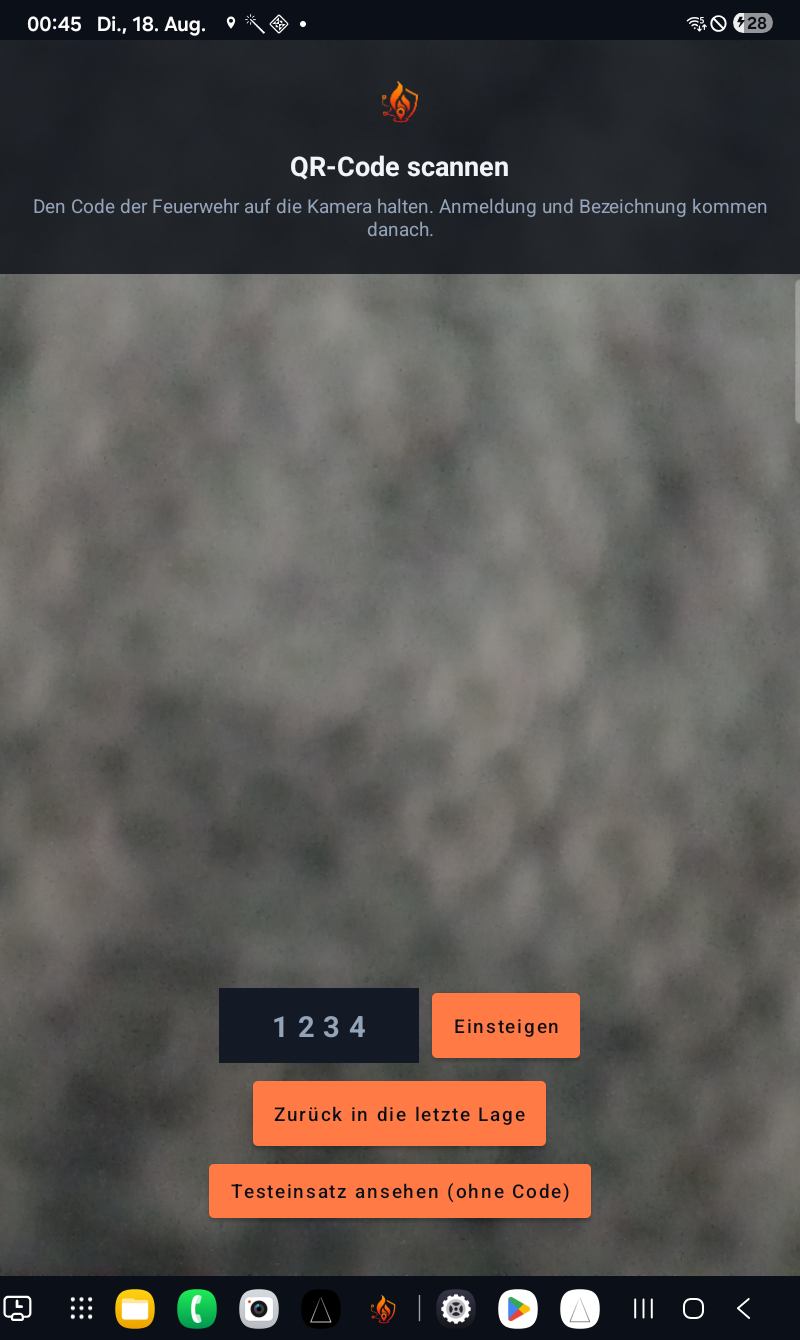
- Open the app. If it does not know a brigade yet, it starts with the QR-Code scannen window.
- Hold the fire brigade’s code up to the camera. Sign-in and the unit name come after that.
The code leads straight into sign-in, with no password. If it is opened not with the app but with the phone camera or in a browser, the server sends the device to the matching surface — computer, Android or iPhone. The app does not need that; it opens its own surface itself.
If the device has already been in a situation, the app remembers the brigade and opens that brigade’s situation again on the next start. The scan window only comes back when the incident has ended or you have signed off. At the bottom there is then also the button Zurück in die letzte Lage.
Type four digits
The incident PIN has four digits, for example 1234. It can be read over the radio; a short code like ff-siegendorf cannot. It is the second way in when the lens is fogged, the printout is hanging in the fire station, or you are on the way there.
- In the app, type the four digits into the field at the bottom and tap Einsteigen. The enter key in the field does the same.
- In the browser open tracking.fireappx.com, enter the digits in the Einsatz-PIN field and click Einsteigen. Underneath is the note: Die vier Ziffern gibt die Einsatzleitung am Einsatzort aus.
Which fire brigade stands behind it, the server knows. You do not have to know it or spell it.
If the code is wrong, the browser does not show an error page: you land back on the start page with the note Diese Einsatz-PIN gibt es nicht — oder der Einsatz ist schon beendet and can try again at once.
In the app it depends on what is in the field:
- Fewer or more than four digits — the app checks that itself and writes in red at the top of the scan window: Diese Einsatz-PIN gibt es nicht — oder der Einsatz ist beendet.
- Four digits that do not exist — only the server notices that. The app then shows Das Lagebild antwortet mit Fehler 404. and the button Erneut versuchen. It leads back into the last remembered situation; if none is remembered, the scan window comes again.
The same applies to an old QR code whose incident is over: in the browser you then get the page Nicht gefunden with the same sentence and a link to the start page.
Anyone who types wrongly very often in a row is slowed down; then it says: Zu viele Fehlversuche von diesem Anschluss. Bitte in einer Viertelstunde noch einmal versuchen — oder den QR-Code der Einsatzleitung scannen, der führt ohne Eintippen hinein.
Test incident without a code
To try it out you need no code at all. In the app the test incident has been in the Hauptmenü since 22.08.2026: tap Hauptmenü at the bottom of the scan window, there under the brigade list the section Ohne Anmeldung ansehen and in it the button Testeinsatz ansehen. It is set off from the brigade list by a line, and on purpose: it signs nobody in. Nothing is sent and no location is collected.
In the browser the way is on the start page: right next to the PIN field the tile Zum Ausprobieren with the name of the test brigade and the extra echte Anlage, erfundene Lage. In it all three entries stand in the open — Einsatz-PIN, Kommando-PIN and the password for Verwaltung —, and below them the buttons Lagebild and Verwaltung. With the command PIN you can also try how Einsatzleiter (incident commander), Einsatzleitung (command) and Beobachter (observer) see the situation. That it is openly visible is on purpose: there is nothing to protect here. At every real brigade none of this stands anywhere.
Who hands out the code
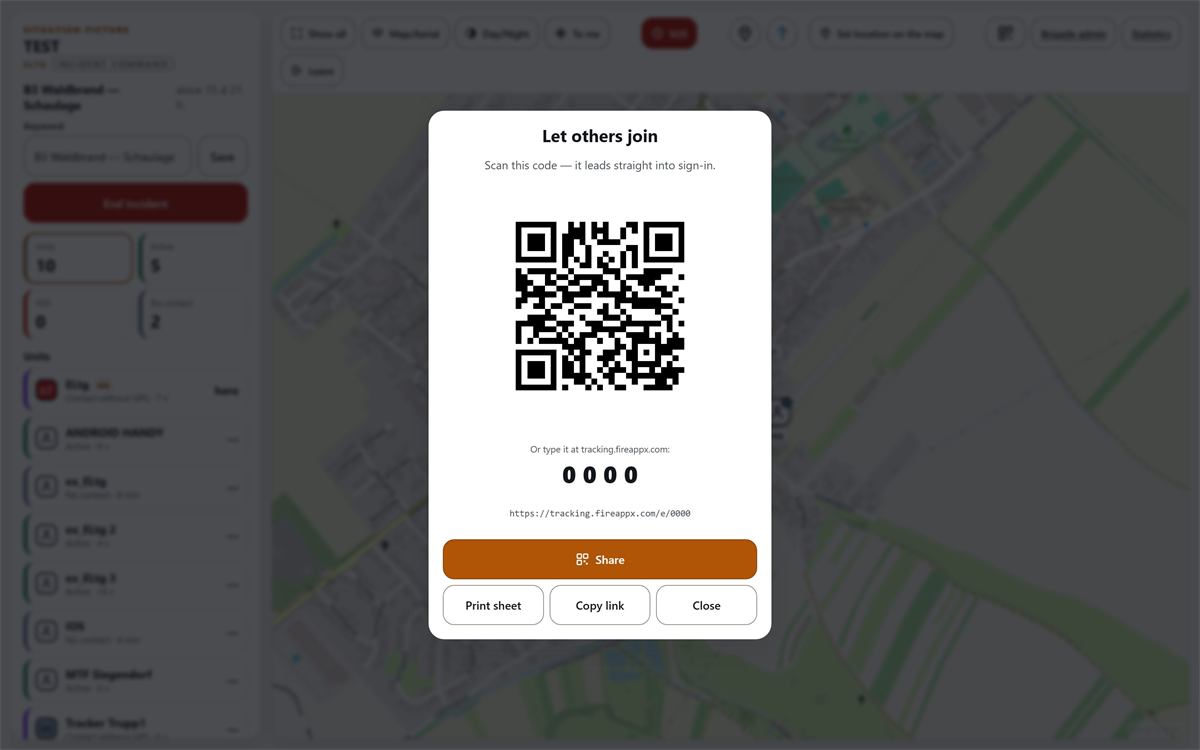
The code comes from anyone who is already in. Every signed-in unit has the button — on the computer QR zum Einsteigen in the sidebar above the log, on the phone and on the iPhone the QR mark among the map buttons. That is on purpose: if two crews turn out and only one is signed in, the second should not have to wait until command has time. What is passed on is only the way into sign-in — the incident PIN still stands in front of it, and this way gives nobody the command PIN.
The sheet is called Einsteigen lassen. On it stand the QR code, below it the four digits to read out and the address to type. If no incident is running yet, the digits are missing; then the QR code holds the brigade’s short code, and the way leads first to opening an incident.
The way in can be passed on in three ways:
- Hinhalten — someone is standing next to you and scans the code from the screen. That needs no button.
- Teilen — the button hands the entry on to a messenger or SMS. It only appears if the device can do that.
- Link kopieren — when the system share sheet does not come. After that it says Link kopiert. underneath, and if it does not work: Kopieren ging nicht — der Link steht oben zum Abtippen.
With Schließen the sheet closes again.
The start page does not show the incident PIN of a real incident. Anyone who has it signs in and stands on the map. On a page that anyone can open it would therefore not be a help, but an open door. A printout, radio and messenger have a recipient; the start page has none. Only at the test access does the code stand in the open — there is nothing to protect there.
tracking.it-n.at. For typing and reading out, tracking.fireappx.com applies.Sign in: name and kind
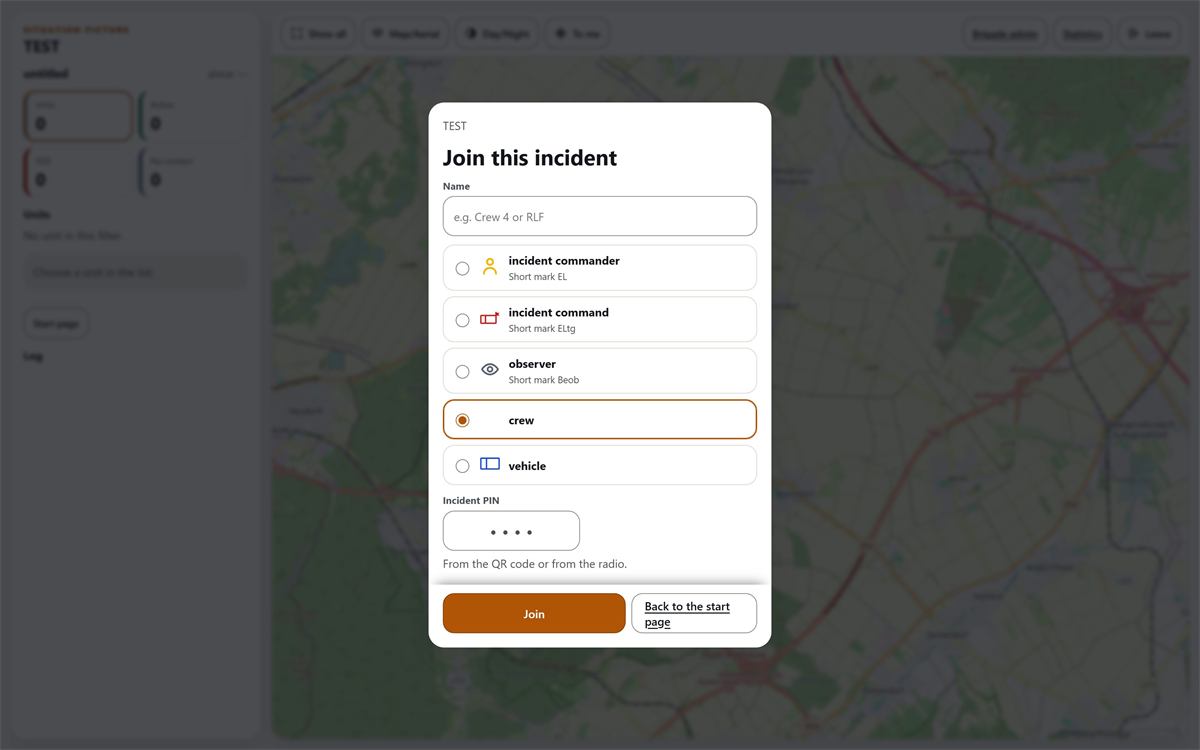
After joining, the sheet An der Lage anmelden lies over the map; the brigade’s name is at the top. As long as nobody is signed in, it stays there; you cannot tap it away. Anyone who was already signed in and only reloads the page comes straight into the situation without this sheet.
- Enter the Bezeichnung. The examples follow the kind — for Einsatzkraft Crew 1 A-Village, for Fahrzeug RLF-2000 A-Village, for Beobachter Press; they are examples, not forced text. They stand faintly in the empty field, below it the line For example … — free to choose., and a tap into the field shows the other examples of that kind as a list. They change with the kind. None of them is entered by itself. Only the name this device signed in with last time is filled in; then From last time — editable. stands below it, with the small button Zurücksetzen.
- Choose the kind: Einsatzleiter, Einsatzleitung, Beobachter, Einsatzkraft or Fahrzeug. Einsatzkraft is preselected. On the phone each kind shows only the name; the short mark that later appears on the map is left off there, because the space is needed for the PIN.
- Enter the PIN. Which one is asked depends on the kind chosen: Einsatzkraft and Fahrzeug need the incident PIN — Einsatzleiter, Einsatzleitung and Beobachter the command PIN. The Beobachter triggers nothing, but sees everything the Einsatzleitung sees; with the incident PIN that is read over the radio, that view would stand open to anyone. Anyone who has come in through a scanned QR code or an entry link has already given the incident PIN — then instead of the field there stands the sentence Die Einsatz-PIN ist mit dem Code schon erbracht. The command PIN is still always asked.
- For Fahrzeug, Fahrzeugtyp appears as well: Fahrzeug, Water-carrying, Helikopter, Boot or Drohne. If the name starts with TLF or RLF, Water-carrying is preselected while you type, otherwise Fahrzeug. Anyone who changes the choice by hand keeps their choice. The codes TLF and RLF stay.
- Tap Anmelden. After that, location and the situation run.
EL and ELtg carry no name
If you choose Einsatzleiter or Einsatzleitung, the Bezeichnung field disappears. The unit is then called EL or ELtg — as it is called on the radio. A name sent along anyway is discarded. Otherwise the Einsatzleitung would stand as RLF2000 in the unit list, only because something else was in the field before.
Both roles exist exactly once per incident.
Sometimes sign-in asks again:
- If the role is already taken, the previous name stands beside it. Rolle übernehmen replaces them, Abbrechen leads back into the form.
- If the name is already signed in, last contact and the number of positions stand with it, and the question comes whether that was your own device from earlier. Ja, das war ich takes over the old entry, Nein, als zweite anmelden appends " (2)" to the name.
- If the name is missing, it says in red in the form: Bitte eine Bezeichnung eintragen.
- If no incident is running, the sentence depends on the kind chosen. Einsatzkraft and Fahrzeug read: Es läuft gerade kein Einsatz. Die Einsatzleitung muss ihn zuerst eröffnen. Einsatzleiter and Einsatzleitung read: Es läuft kein Einsatz. Als Einsatzleitung kannst du einen eröffnen. — and only then does the button Einsatz eröffnen appear. It opens the incident and signs you in right after.
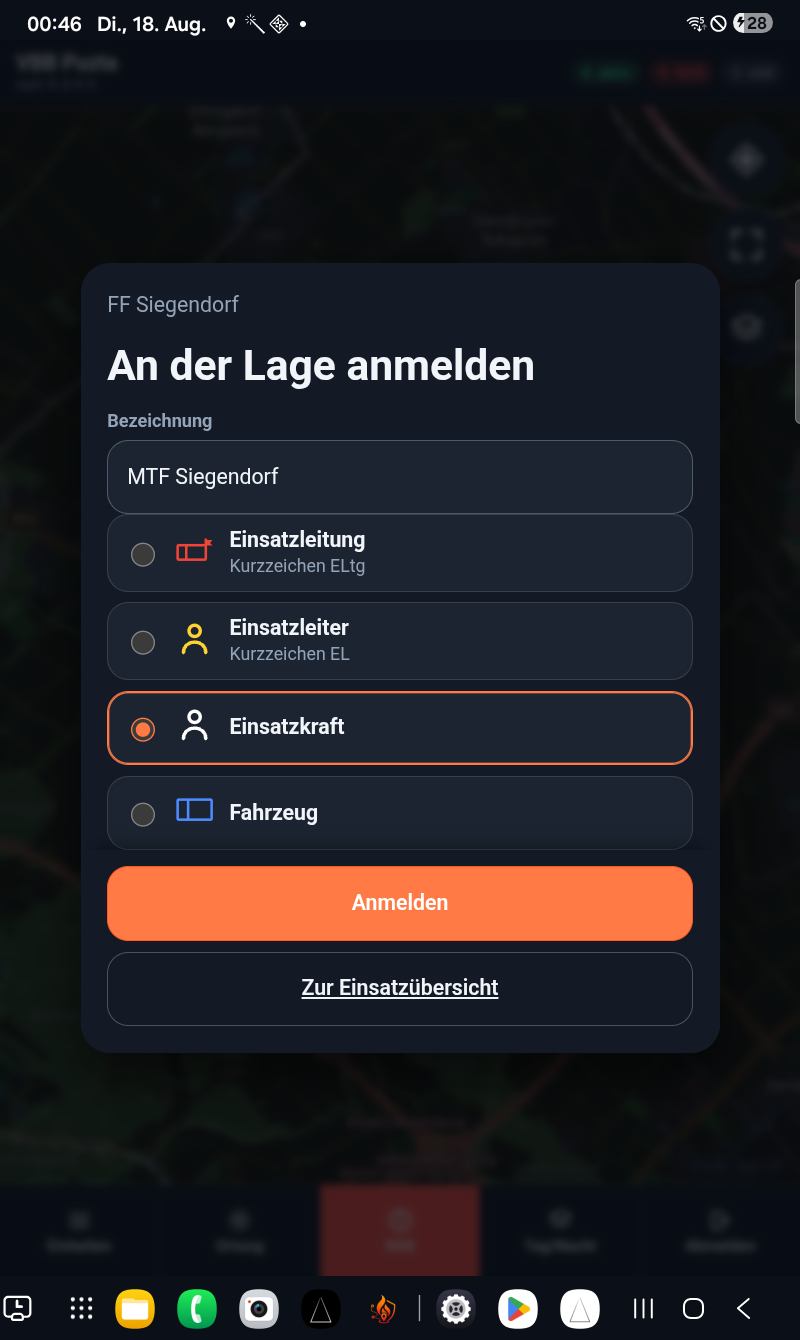
If you have landed in the wrong situation, Zur Einsatzübersicht leads back to the start page.
Open, name, and end an incident
These three things are done only by command: the Einsatzleiter (short mark EL) and the Einsatzleitung (short mark ELtg). Anyone who signs in as Beobachter, as Einsatzkraft or as Fahrzeug does not see the buttons at all. The server checks that once more itself, even if the button is triggered another way.
| Signed in as | Open an incident | Set the keyword and end |
|---|---|---|
| Einsatzleiter (EL) | yes | yes |
| Einsatzleitung (ELtg) | yes | yes |
| Beobachter (Beob) | no | no |
| Einsatzkraft, Fahrzeug | no | no |
Both command roles may do all of that. A small incident can do without an Einsatzleitung — then the Einsatzleiter opens it.
Open an incident
As long as no incident is running, nobody can sign in. The way in therefore always goes through command. The button Einsatz eröffnen stands in the sign-in form, right under Anmelden — the same on all three surfaces: on the computer, on the phone and on the iPhone.
Important: when you open the page the button is not there yet. If no incident is running, the form only reports “Es läuft gerade kein Einsatz.”. The button comes only after you have chosen a command role and pressed Anmelden.
- Open the Lagebild of your own brigade. The sign-in form lies as a sheet over the map.
- In the choice tap Einsatzleiter or Einsatzleitung. Einsatzkraft is preselected, so you really have to switch here. The Bezeichnung field disappears as you do — the two roles are always called EL or ELtg; a typed name is discarded.
- Press Anmelden. If no incident is running, the note “Es läuft kein Einsatz. Als Einsatzleitung kannst du einen eröffnen.” comes, and the button Einsatz eröffnen becomes visible.
- Press Einsatz eröffnen. The incident is running, and you are signed in in the same move — with the role that is ticked above.
When it is opened the incident gets its four-digit Einsatz-PIN. With these four digits everyone else comes in — on the start page in the Einsatz-PIN field with the button Einsteigen, or via the QR slip. The code is valid only as long as the incident is running.
The incident starts without a keyword. At the top it then says “ohne Stichwort”, until someone enters one.
If two command officers press at the same time, only one incident is still created: the second is signed in to the same incident. If both chose the same role, the second is asked whether they want to take over the role — with Rolle übernehmen or Abbrechen. The simplest is if one chooses ELtg and one EL.
Enter the keyword
The keyword is the heading of the incident, for example B2 Zimmerbrand Hauptstraße 14. On the computer it stands at the top of the sidebar and on the phone and on the iPhone at the top of the header — for everyone signed in, not only for command. Beside it the time since opening runs along (“seit …”).
Only command can change it, and only on the computer: the Stichwort field with the button Merken does not exist on the phone or on the iPhone.
- In the Lagebild on the computer type into the Stichwort field and enter the text. Up to 120 characters.
- Press Merken. The enter key does the same.
- In the sidebar the message “Stichwort gemerkt.” then appears. An empty field removes the keyword again; then it says “Stichwort entfernt.”.
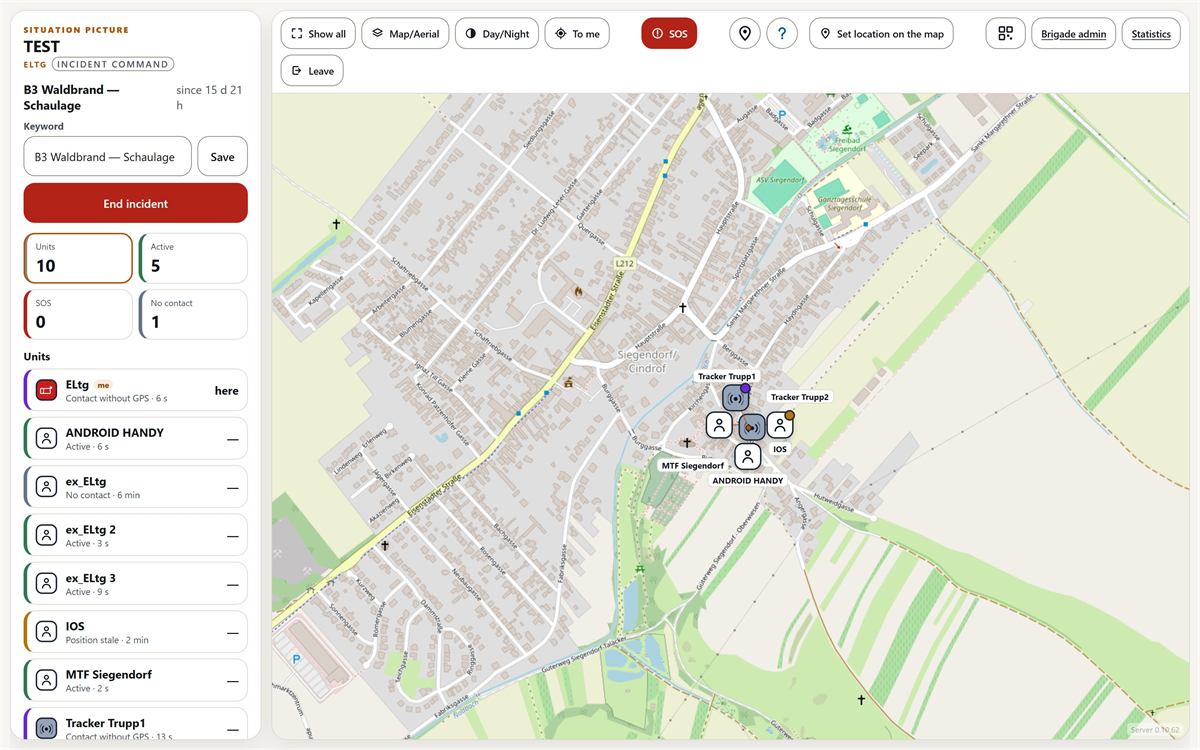
Every change of the keyword lands in the incident log. So nothing is lost if the keyword becomes more precise during the incident.
End the incident
The red button Einsatz beenden stands in the sidebar on the computer, directly under the keyword field. Only command sees it too, and it too exists only on the computer.
You are asked first. A press on the button ends nothing yet — first a sheet comes with the question “Einsatz beenden?” and under it the number of signed-in units (“6 Einheiten angemeldet.”).
- Press Einsatz beenden. The confirmation appears.
- If something new is still in the keyword field, it goes into the archive automatically when ending. Saving beforehand is not needed. An empty field deletes nothing when ending — the previous keyword stays.
- Confirm with Einsatz beenden — or cancel with Weiterführen and carry on.
What happens when it ends:
- All signed-in units are signed off. On the other devices that happens at the next situation poll, so a few seconds later: there it then says “Der Einsatz ist beendet.”, and the sign-in form is back.
- The incident moves into the archive with all units, all positions and the whole log. If the number of transferred rows does not match, the move aborts and the incident stays where it is.
- The four-digit incident PIN is no longer valid. Anyone who still has it on a slip no longer gets into a situation with it.
- The units are signed off, not deleted: each unit’s path remains readable in the archive.
- On the command screen the sign-in form appears with the message “Einsatz beendet und archiviert — 6 Einheiten, 12,4 km.” There stand the number of units and the kilometres that came together.
Ending cannot be undone. There is no button that opens the incident again. Anyone who wants to carry on opens a new incident — with a new incident PIN, and every unit must sign in again one by one. In an incident that costs time. So read the confirmation first, then confirm.
Reading the Lagebild
The Lagebild shows every signed-in unit as a tile on the map. It fetches the situation by itself — there is nothing to reload and no button to refresh. As a rule every five seconds; if a distress call is running somewhere, every three. How fast it asks, the server says: only it knows whether anything is happening at all. If the connection is gone, the device falls back to five, ten and twenty seconds, instead of hitting a server that cannot hear it anyway once a second.
The colours are the ones from the scene
The colour of a tile says who stands there. It is not invented, but taken from what lights up at the scene: red flashing light at the Einsatzleitung, yellow high-vis vest on the Einsatzleiter, blue light on the vehicle. Anyone who looks up from the screen finds the same colour outside again.
| Who | Tile colour | Mark inside |
|---|---|---|
| Einsatzleiter (EL) | Yellow | the Einsatzleiter’s own mark |
| Einsatzleitung (ELtg) | Red | the Einsatzleitung’s own mark |
| Beobachter (Beob) | Grey — not on the map | — |
| Einsatzkraft | White | person |
| Fahrzeug | Blue | lying rectangle |
| LoRa-Tracker | Grey | tracker mark |
The whole face carries the colour, not only a rim. What stands out is therefore who is there — and not how they are doing just now. Red occurs twice, at the Einsatzleitung and at the distress call. That is on purpose: the Einsatzleitung stands still, the distress call blinks.
The Beobachter is the only one not on the map and in none of the counters. They report no position: a second computer with staff in the fire station does not belong at the scene as a unit. Their colour still stands in the administration catalogue — grey, present, but not part of what is happening.
What stands on the tile
- All vehicles carry the same mark. Only water-carrying vehicles have a water drop in the body — anyone who needs water does not have to read names first. The drop goes to anyone who has entered Water-carrying as the vehicle type. If the name starts with
TLForRLF, the sign-in form preselects that type by itself; you can still change it. - Vehicle tiles are wider than they are tall; all others are square.
- The name plate hangs on the tile, usually underneath. Einsatzleiter and Einsatzleitung carry their short marks
ELandELtgthere, everyone else their name. - If several units stand on one spot — four vehicles in the fire station, say — the system pushes the tiles apart; the name plate moves with them and shifts aside where it would otherwise lie on someone else’s tile. At the real location sits a small dot in the unit’s colour, and as soon as something is shifted, a thin line leads from the dot to the tile. The location is therefore not falsified, the shift only admitted.
Active, no contact, SOS
The state sits as a small dot at the top-right corner of the tile. As long as everything is in order, there is no dot at all: a dot that was always there would say nothing.
| State | Display | What is behind it |
|---|---|---|
| Active | no dot on the tile | The device is reporting, the position is fresh. |
| Position stale | yellow-brown dot | The last position is older than 90 seconds. |
| Contact without GPS | violet dot | The device is reporting but has no satellite fix. |
| Battery low | orange dot | 15 percent or less. |
| No contact | grey dot | Nothing has arrived for more than three minutes. |
| SOS active | red, the whole tile blinks | A distress call is running. |
Every unit always has exactly one state. The system checks in order: first SOS, then no contact, then battery low, then contact without GPS, then position stale — whichever matches first is what stands there. Anyone who has reported nothing for four minutes therefore stands grey, even if the battery was last low.
SOS beats everything else. The tile blinks and as it does reverses colour and rim, it lies over all other tiles, and at the very top of the page the red alarm bar appears as well. If screen motion is switched off on the device, nothing blinks — then the distress call stands there with a wide white rim and a red edge.
The colour never stands alone. In the unit list the state stands as a word next to the name — “Kein Kontakt · 3 min” — and the left edge of the row carries the same colour. For the selected unit it stands once more in the details below. That keeps it readable if someone is red-green colour-blind or the screen looks washed out in the sun.
Above the unit list stand four numbers: Einheiten, Aktiv, SOS, Kein Kontakt. These counters are buttons. A tap on Aktiv, SOS or Kein Kontakt shows only those units in the list; the same counter again lifts the filter, and Einheiten always shows everyone again. On the phone three of them stand at the top of the header: aktiv, SOS and still.
Day and night
On the computer the system starts light, on the phone and on the tablet dark. A vehicle switches to the night scheme by itself when signing in. The reason is not taste: a bright screen in a dark vehicle blinds, and night vision is gone for minutes after that.
The button Tag / Nacht switches. The choice stays stored on the device and applies again on the next visit.
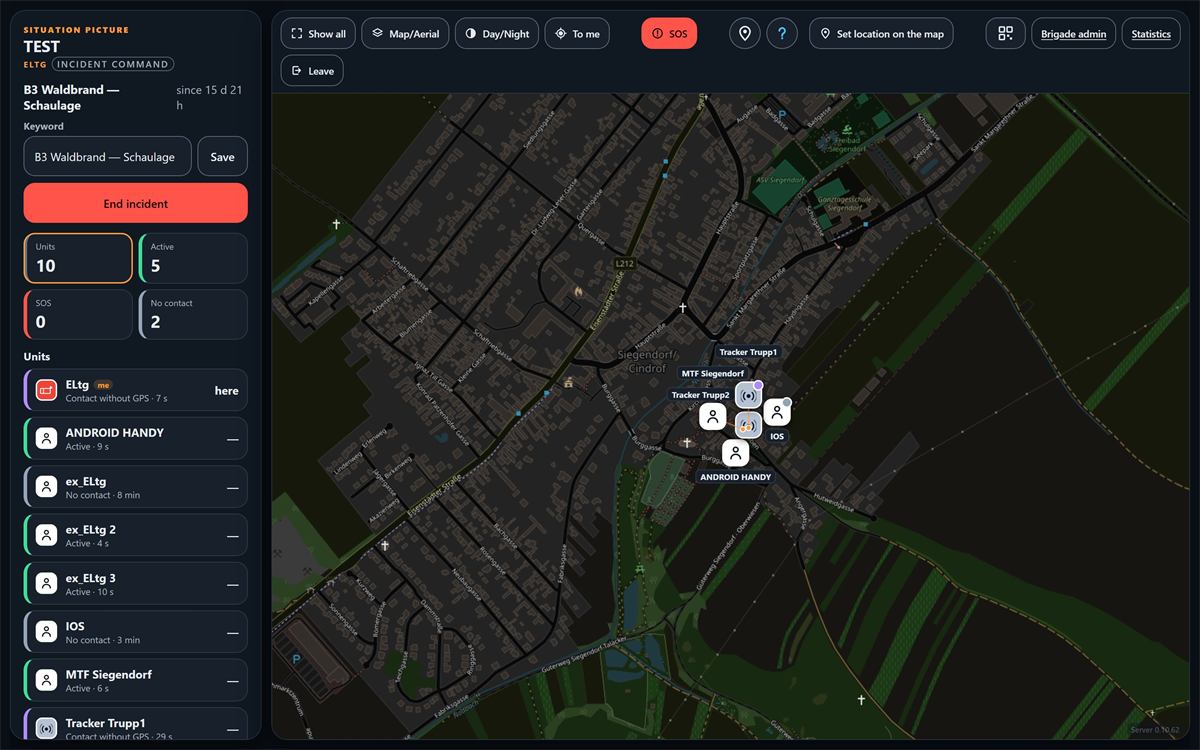
Map or aerial photo
The button Karte / Luftbild switches between the drawn road map and the aerial photo. The aerial photo helps where there are no roads — field, forest, works site.
In the night scheme only the road map is inverted. The aerial photo stays as it is; an inverted aerial photo would no longer be readable.
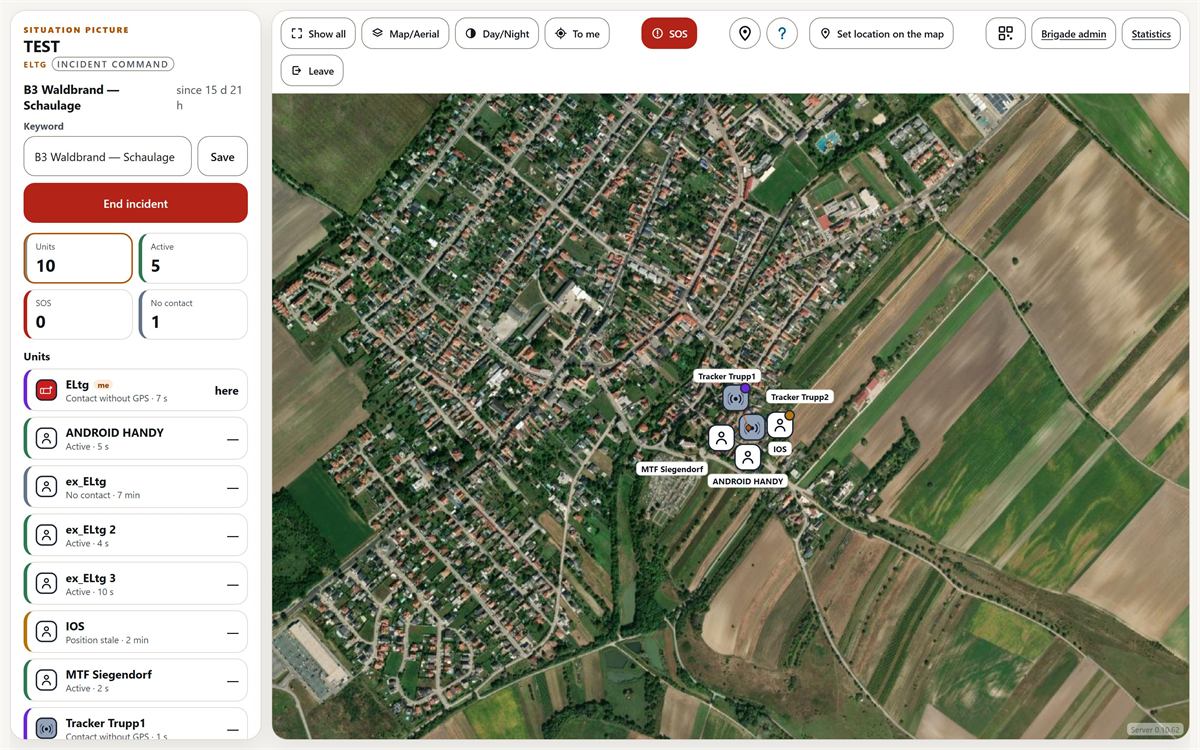
Two further buttons arrange the view: Alle zeigen pulls the map out far enough that every unit with a position is in the picture — if none has a position, nothing happens. Zu mir jumps to your own location.
For the Beobachter, their own unit is not on the map. Zu mir still centres on the device location — this device’s GPS, not ELtg or EL. If the device has no position, the map stays where it is. On an Android device the back key does the same.
One button is seen only by the Einsatzleitung: Standort per Karte setzen. After a tap on it, the next tap on the map sets your own location. That is meant for the computer without GPS, whose estimated location otherwise lies kilometres off; a point set this way takes precedence over the measured one.
Select a unit
- Tap a row in the Einheiten list — or the tile on the map straight away.
- The map flies to that unit. It zooms in far enough that the streets around can be recognised; it is never zoomed further out.
- Under the list stand the details about it: kind, state, last contact, last position, distance, battery.
- Tapping the same row again lifts the selection.
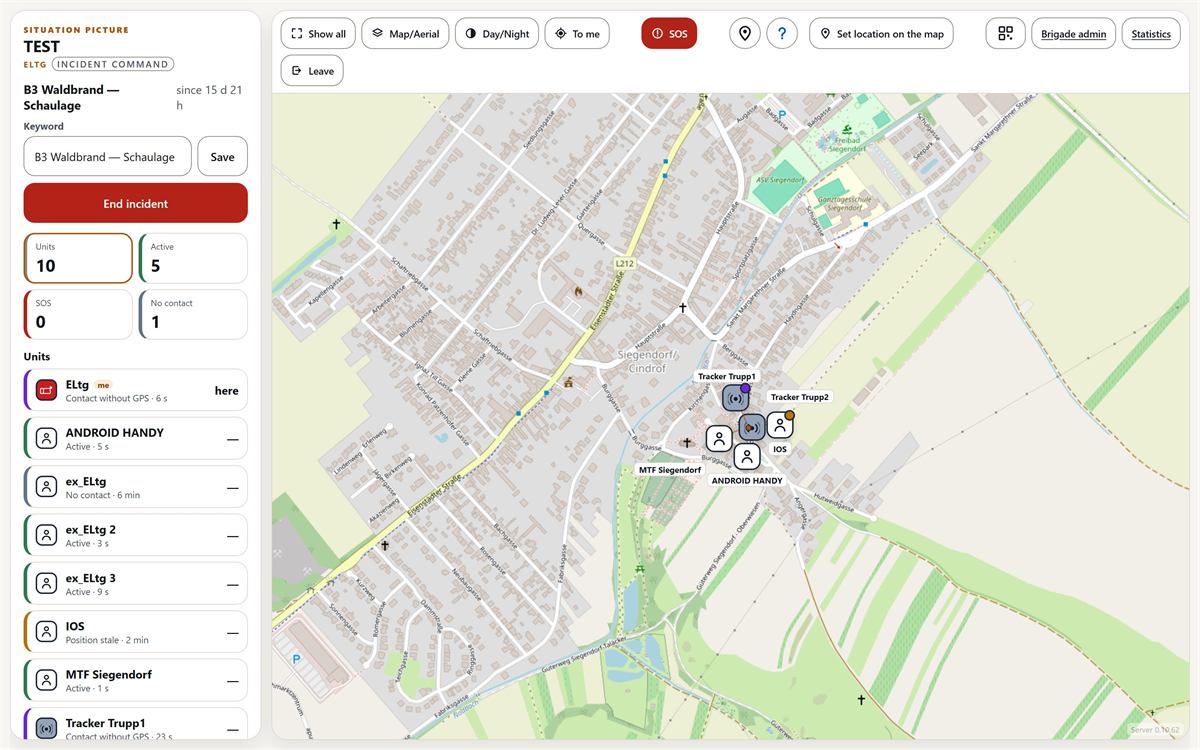
Two details only appear if they exist. Genauigkeit stands where the device reports it; over 200 metres with the extra “sehr ungenau” — a computer without GPS estimates the location from the internet connection, and that can lie kilometres off. Funk stands only on LoRa devices and names the reception strength in dBm, plus the signal-to-noise ratio.
Distance and direction
On the right of every row in the unit list stand distance and cardinal direction, measured from your own location. Your own row is marked ich and carries the word hier on the right — a distance to yourself says nothing.
The list then sorts itself: command first, then the nearest unit at the top. Anyone without a position stands at the end and ordered by name; there a dash stands instead of the distance.
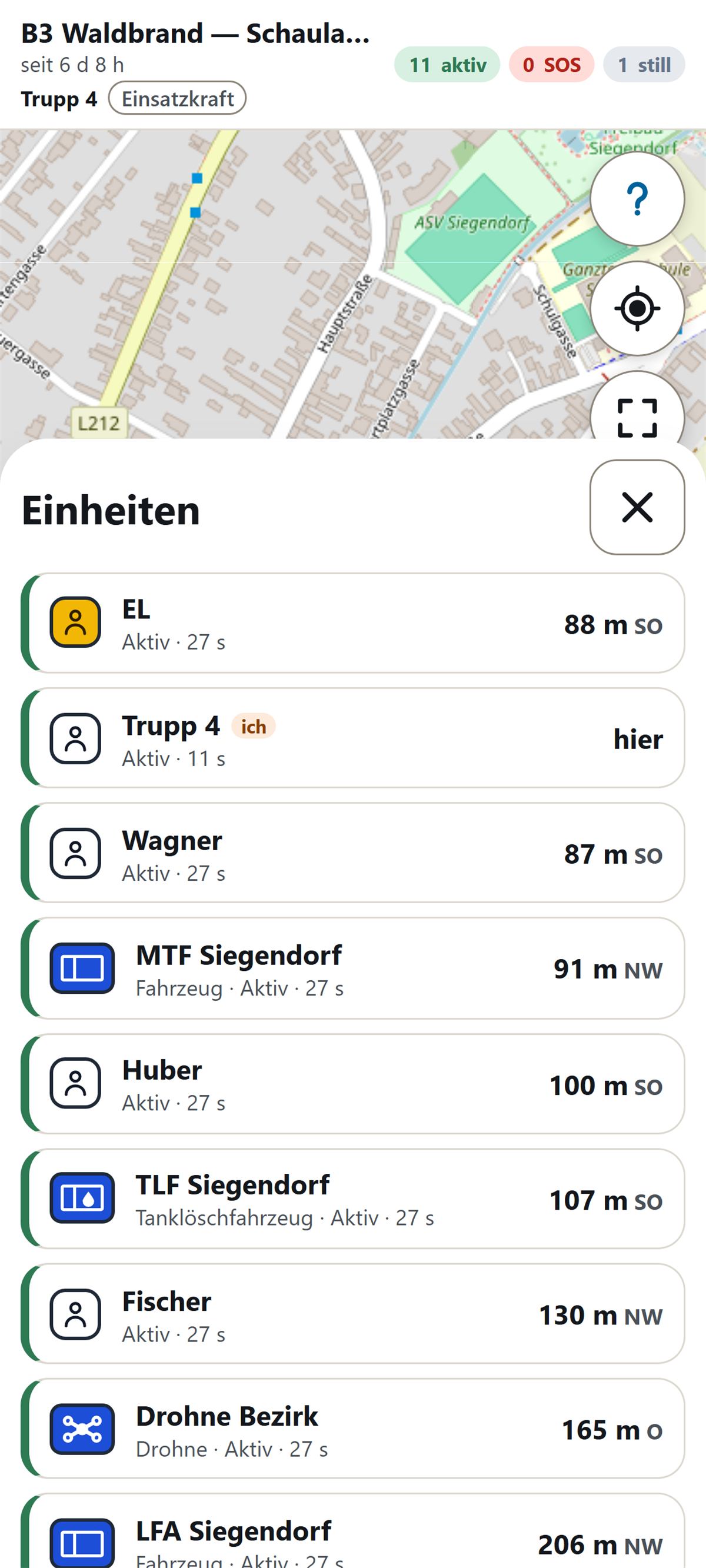
On the phone and on the iPhone a pointer is added as soon as a unit is selected. It does not point north, but at that unit — in an incident the question is never “where is north”, but “where is the crew”. Beside the pointer stand the unit’s name and cardinal direction and distance as text, because a rotated graphic alone can be misread. On the iPhone the compass must first be released through a button. Einsatzleiter and Einsatzkraft have the pointer; on Einsatzleitung and Fahrzeug it is switched off. On the computer it does not exist: a computer has no magnetometer, and a button that does nothing is worse in an incident than no button.
Assignment and request — the blue bar
Beside the distress call there is a second way to reach someone, and it is expressly not an alarm: red belongs to the distress call, blue means “a procedure is running”. Both collect in the same blue bar over the map.
The assignment. Einsatzleiter and Einsatzleitung select a unit and tap the dot mark to the left of SOS; the next tap on the map sets the point. The button says what it is doing just now — Auftrag setzen, Abbrechen, Auftrag zurücknehmen. At the assigned unit a continuous tone runs until they answer; in their bar stand Angenommen and Abweisen, after accepting it says Erledigt. You can only decline while the assignment is open.
The request goes both ways. The same question mark carries exactly one meaning per role, so that nobody has two next to each other:
- For Einsatzleiter and Einsatzleitung it means “send a request to a unit”: select the unit, press the question mark. At that unit a single notice tone sounds, and in their bar stand Bestätigen and Abweisen.
- For Einsatzkraft and Fahrzeug the same button means “report to the Einsatzleitung” — the raised hand. A second tap lowers it again (“Meldung zurücknehmen”). At command the unit then stands in the blue bar under Meldet sich:; the name can be tapped and leads to them on the map.
- Beobachter and LoRa-Tracker do not have the question mark. The Beobachter sees assignments and requests, but does not intervene in anything.
A raised hand is not acknowledged from the bar, but like everything else at that unit: select the unit, press the question mark. There it then says Meldung gelesen — die Einsatzleitung hat sie gesehen. The notice goes away on a tap, and it does not disappear by itself: anyone looking at the map just then should not miss it.
The log
Right at the bottom of the sidebar on the computer stands the Verlauf — the written-along protocol of the incident. The newest is at the top, the time on the left, the text on the right. Up to 60 rows are shown in a scroll area of their own, so that the rest of the sidebar stays where it is.
Four levels colour the row:
- Red and bold: a triggered distress call.
- Orange: a warning, for example “hat niedrigen Batteriestand”, the handing over of a command role — and a declined assignment or a declined request.
- Blue: assignment and request, as long as they run as planned — set, accepted, done, raised hand and its end.
- Grey: the ordinary — sign-ins, sign-offs, back: GPS fix, ending a distress call, ending the incident.
The stripe at the edge and the text itself are coloured. When you scan a long list you read the text, and a distress call must stand there in red — not only be marked in red.
The distress call
The distress call is the red button SOS. It tells command and the nearest around that someone needs help. In the app on the phone and on the tablet it stands at the bottom of the control bar, on the iPhone likewise. On the computer it stands in the toolbar over the map, and on its own: left and right of it there is space, so that a mis-tap does not hit it in passing.
The button is there for every signed-in unit — for Einsatzkraft just as for the vehicle and for command.
It is always red, even when no distress call is running. That is on purpose: you should find it in the dark and with gloves, without searching.
Trigger a distress call
- Tap SOS. Nothing happens yet, the distress call does not go out yet.
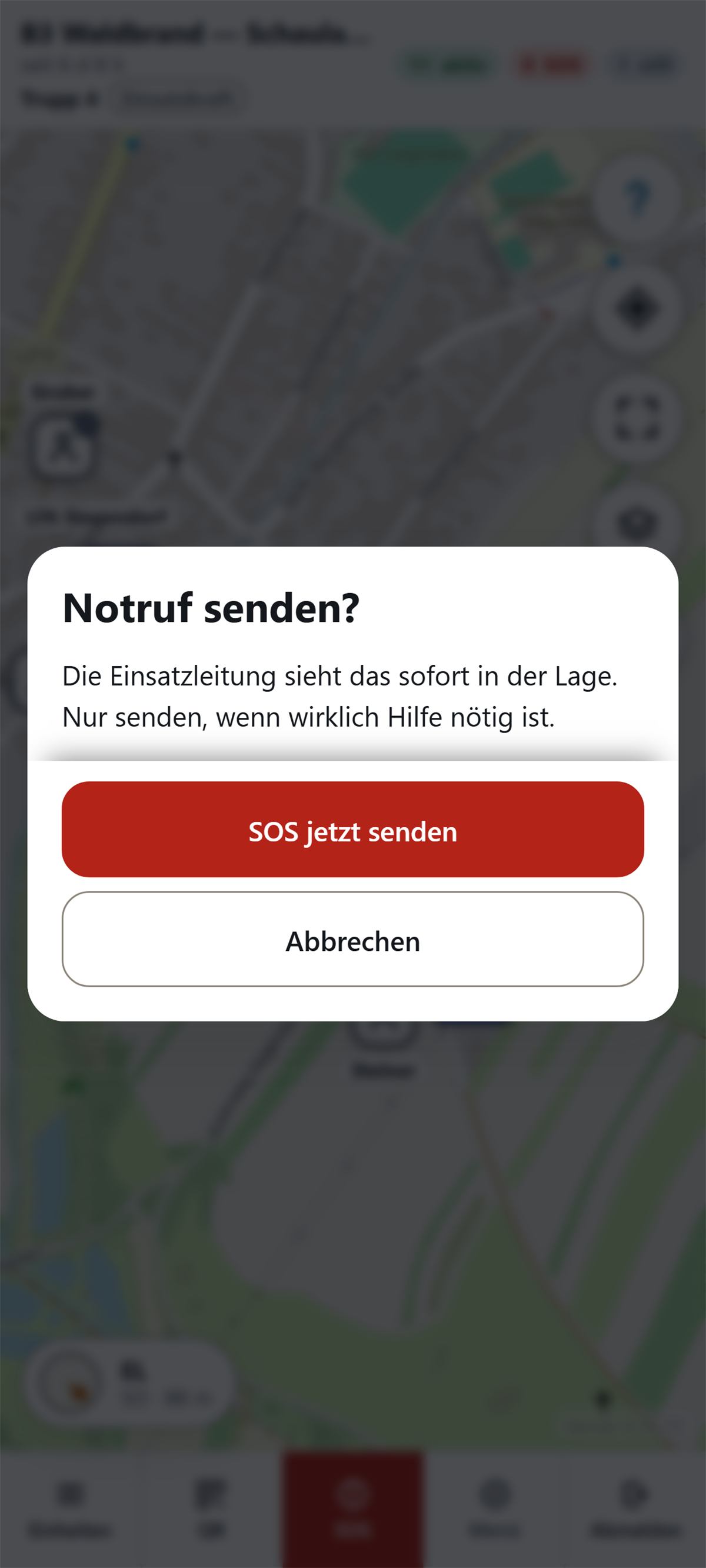
- The sheet Notruf senden? lays over the whole screen, the rest goes dark. Underneath it says that the Einsatzleitung sees this at once in the situation.
- Tap SOS jetzt senden. Only now does the distress call go out.
Anyone who tapped by mistake taps Abbrechen. Then everything stays as it was.
What the button says while sending
Between the tap and the server’s confirmation lies a third state: the button is then called SOS wird gesendet … and gets a dashed rim. As long as it looks like that, the distress call is on the way — the Einsatzleitung does not see it yet.
Most of the time that lasts a fraction of a second and you barely see it. In a radio hole it lasts longer, and that is exactly what the state is for.
When there is no network
The device tries three times in a row. If it still does not work then, a red message comes:
Notruf noch nicht angekommen — kein Netz. Er wird weiter versucht. Bitte zusätzlich über Funk melden.
The distress call is not lost by that. It is remembered and sent again on every further poll until it arrives — even if the page is reloaded in between. When it gets through, the button jumps by itself to SOS beenden.
What the device cannot do: send later while the page is fully closed. Anyone who has pressed the distress call and then closes the app must open it again so that the attempt continues.
That is why the message says “zusätzlich über Funk”. A distress call that is still on the way does not replace the radio call.
The button only turns red when the server has confirmed — never before. That is on purpose: anyone who sees the button red should be able to rely on command having the distress call.
When the distress call has arrived
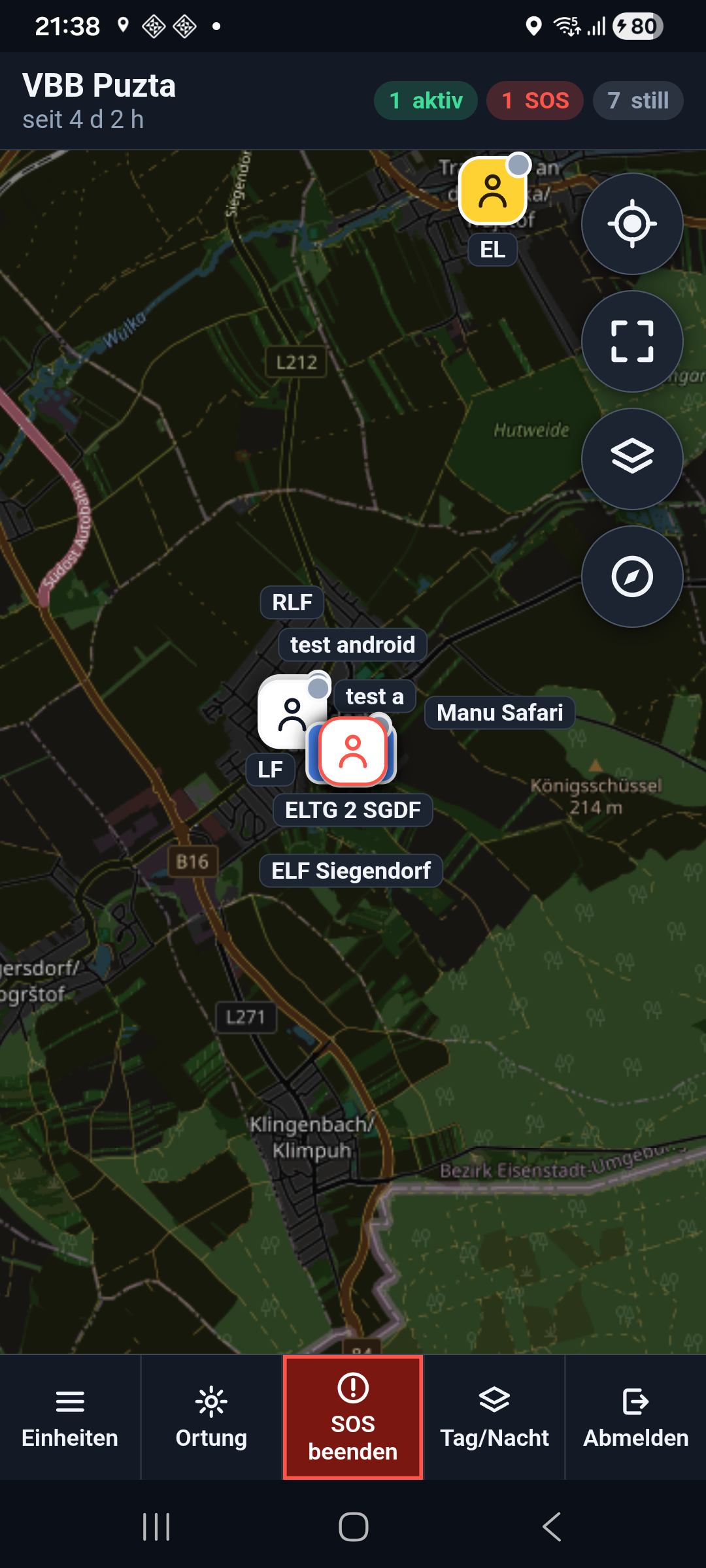
Then the button changes twice: the label switches to SOS beenden, and the button blinks — between red and dark red. Red alone says nothing, it always is that. The blinking is the sign that your own distress call is running. If blinking is switched off on the device, the button stays dark red; you still see the difference.
You are asked twice
There are two confirmations, not one: one before sending and one before taking it back. Both directions hurt. A distress call that goes out at once is triggered by accident. A distress call that can be taken back with a mis-tap disappears from the Einsatzleitung’s screen while someone outside is still waiting on it. On the phone and on the iPhone the SOS button sits in the middle of the lower bar, between Einheiten and Abmelden, on the computer directly next to Abmelden — grabbing beside it is easy.
Who gets the distress call loud
Not everyone. At a large incident with thirty signed in, thirty devices would otherwise scream, and nobody would feel responsible. The distress call is loud at:
- command — Einsatzleiter and Einsatzleitung, always and independent of distance. They have to dispose and therefore have to know.
- the three nearest. Counted are only those who currently count as active: contact in the last three minutes, position not older than a minute and a half, battery over 15 percent. Anyone who is still, whose position is stale or whose battery is almost empty, does not count — then the next one moves up. Every device recalculates that on every poll.
- anyone from whom no position is present just now — and everyone, if the caller themselves has no position. Without a location “nearest” cannot be answered, and a missed distress call weighs more than one alarm too many.
Your own device does not go loud from your own distress call. Anyone who triggered it knows about it.
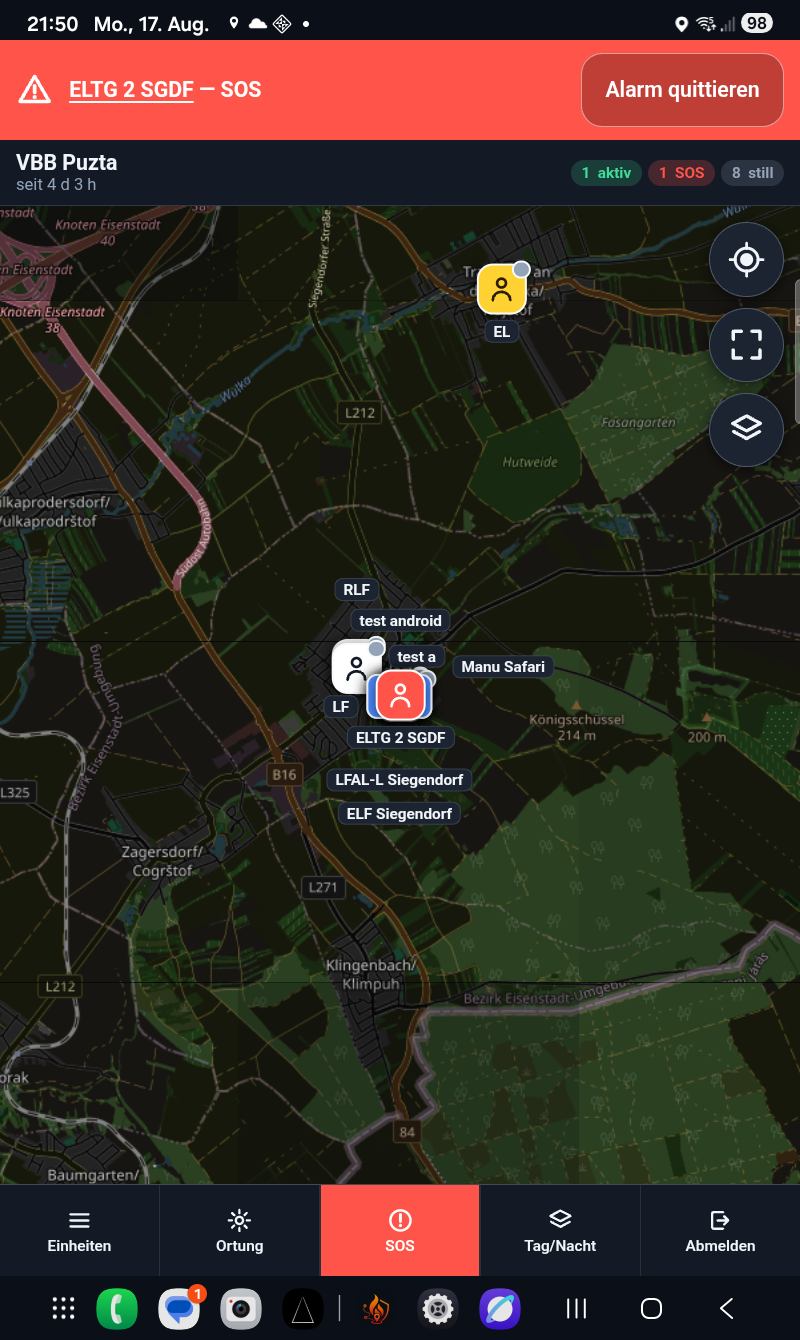
At those who get it, the red Alarmleiste lays over the top of the page, with the name of the calling unit and the extra — SOS. The alarm tone runs with it. A tap on the name leads straight to that unit on the map, a tap beside it to the first. If two distress calls are open, both names stand there, and each can be tapped on its own.
In the Android app the app itself makes the tone — it also goes loud with a locked screen, and no button to release it is needed there. On the iPhone and on the computer the page makes it, and the browser only allows sound after the first user action. As long as it is not released, the button Ton freigeben stands in the alarm bar as well.
How many distress calls are open, the SOS counter shows — on the phone and on the iPhone at the top with the numbers, on the computer in the sidebar. A tap on it shows in the unit list only the units with a distress call; another tap on the same button lifts that again.
Take the distress call back
- Tap SOS beenden.
- The sheet Notruf zurücknehmen? comes, with the note that the Einsatzleitung will no longer see the distress call after that.
- Tap SOS beenden if help is no longer needed. Anyone who grabbed beside it taps Notruf behalten.
If the same button is set to “on” a second time although the distress call is already running, it stays one distress call. The start is only stamped on the change — so two presses do not become two distress calls.
Acknowledge means: alarm off, state stays
In the alarm bar stands the button Alarm quittieren. Anyone who presses it switches the tone off, and the bar disappears from their own device.
The distress call itself remains. The unit stays in the state SOS aktiv, its mark on the map keeps blinking red-white, in the unit list it blinks the same way, and it still counts in the SOS counter. Acknowledging ends the alarm, not the situation. Only the one who triggered it can end the distress call — even the Einsatzleitung cannot switch it off for anyone else.
What is acknowledged is a single distress call, not a unit. If the same unit later ends their distress call and triggers again, the device goes loud again — the second call has a start of its own and therefore counts as unacknowledged. A unit acknowledged once therefore does not stay silent for the rest of the incident.
Acknowledging only acts on your own device. Anyone who acknowledges the alarm at the Einsatzleitung computer does not switch it off for the crews outside.
So that location works
The map only shows what is reported. On Android the app keeps reporting even when the phone is in a pocket and the screen is off. For that it needs four permissions from the device.
The app menu
The button Menü in the lower bar opens the screen Menü — it is called the same as the button. It is built entirely in the app and is therefore there even when there is no connection to the server; that is exactly when it is needed most. In it stands:
- Hauptmenü — right at the top, above everything else: the way to the brigade list. It is not an item of this menu, but the door to another one.
- Diese Einheit — as what the device is currently signed in and at which fire brigade.
- Bezeichnung and Art — enter once and tap Speichern, then the sign-in form is already filled next time; Leeren takes the suggestion back. It applies per fire brigade separately and lies in the app’s storage: it survives an app update, but not an uninstall.
- Freigaben — the text of what the location is needed for, and below it the four buttons; Freigaben öffnen leads to the page Ortung im Hintergrund, see below.
- Version — a line of the form Server <Fassung> - Build <Zahl>. Exactly this line is needed when someone asks back; it stands the same everywhere in the system, so that nobody names the wrong number. Below it the button Nach Updates suchen: by itself the app never asks during an incident, because installing ends the app and with it the reporting service — through the button it still goes.
- Kurzanleitung — who may do what, what the question mark does and what an assignment is.
- Kontakt und Spende — website, e-mail and the donation link. The website opens in the device’s browser, not in the app.
The server address is no longer in it. It is built in and never described a choice — only explained that there is none.
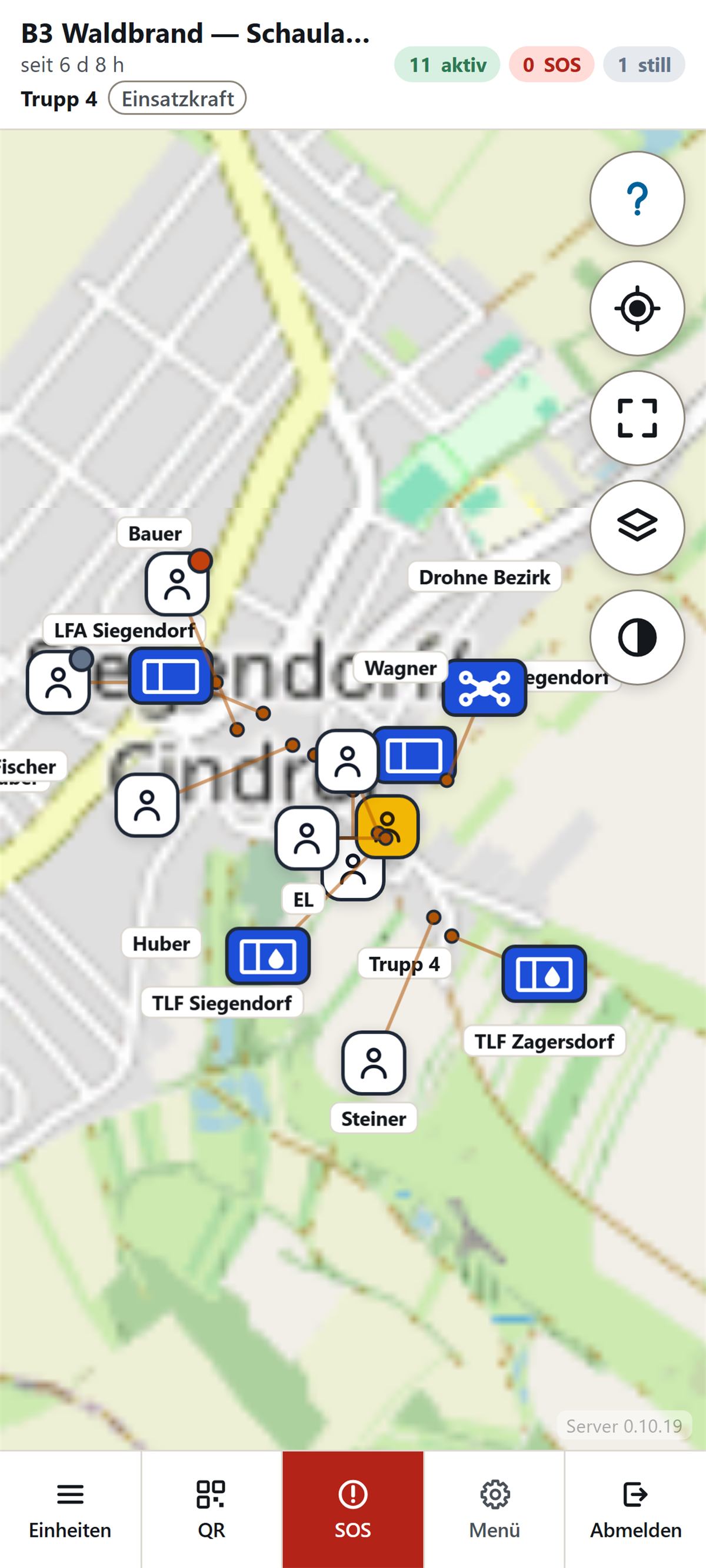
This bar is always there — also before sign-in. There Einheiten, SOS and Abmelden are grey: they need a sign-in. Grey means “it exists, it does not work now” — the buttons do not disappear, so that none of them later stands in a different place. The QR symbol leads to scanning the entry code before sign-in; in the incident it shows every signed-in person the code to pass on. Menü always works.
Sign off from the situation
The button Abmelden at the far right of the lower bar takes the unit out of the incident. It asks first, and the question says both — what is lost and what stays.
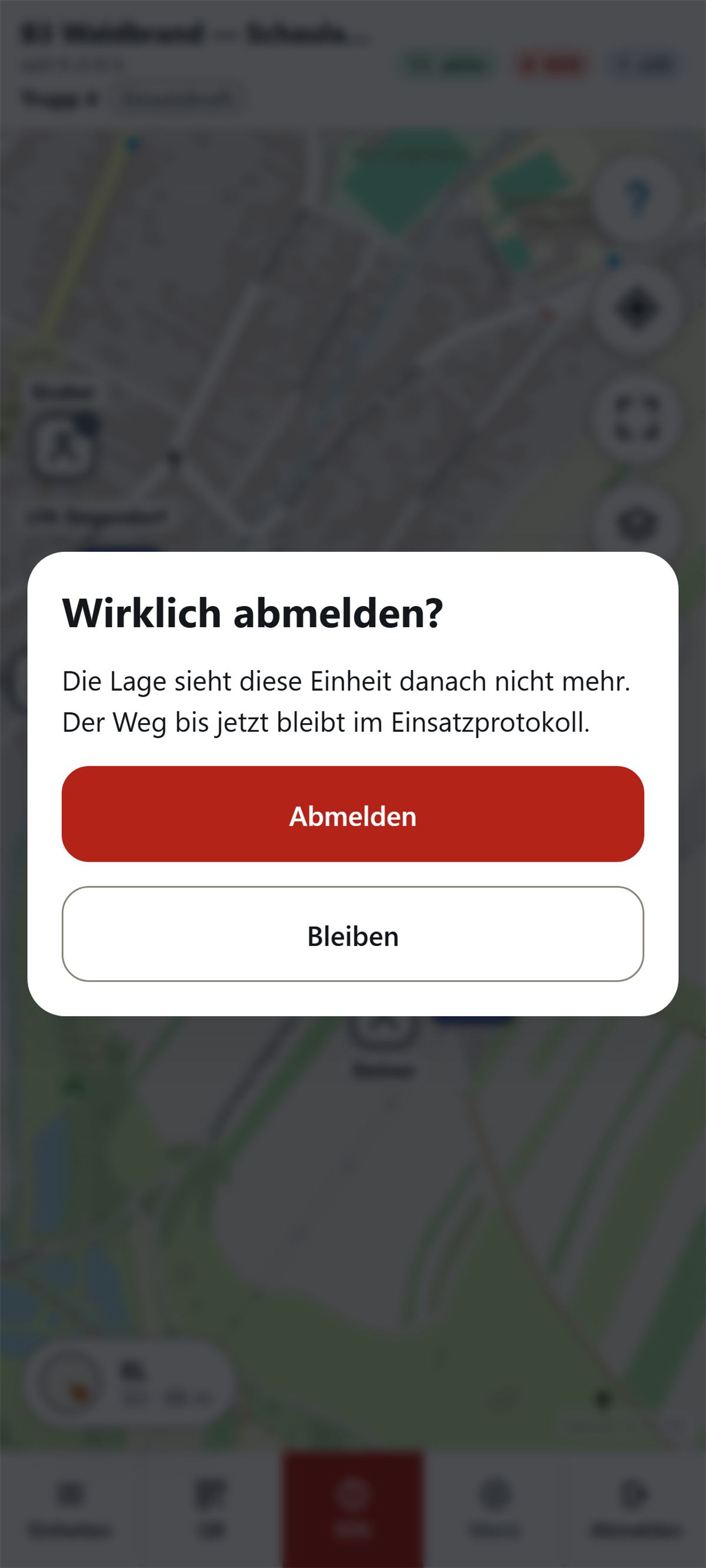
Die Lage sieht diese Einheit danach nicht mehr. Der Weg bis jetzt bleibt im Einsatzprotokoll. After signing off, reporting stops, the reporting service ends, and the unit disappears from the Einsatzleitung’s map. What was reported up to then stays recorded — in the log and later in the archive.
Anyone who does not sign off does not disappear: the unit stays in the situation, after three minutes as Kein Kontakt. Exactly such leftover units the Einsatzleitung later clears in Verwaltung.
The app’s main menu
The Hauptmenü answers a single question: which fire brigade. It has been built entirely in the app since 22.08.2026 — before that the way there led to the start page on the net, so to a web page in an app whose other entry has long worked without a network. It can be reached in two places: on the scan window with the button Hauptmenü and from the menu with the same word at the very top. In the sign-in form the earlier link Zur Startseite is now also called Hauptmenü in the app and leads there.
In it stands:
- Feuerwehr wählen — all brigades of the system with name and identifier. A tap on a row opens their situation. The list comes from the server; the last loaded stand stays in the app, so that something stands there in a radio hole. Above the list stands what currently applies: Liste wird geladen, Der Server ist gerade nicht erreichbar or Noch keine Liste geladen. The button Liste neu laden asks once more.
- Die eigene Wehr — the star on the right of each row marks it. The marked brigade then always stands first and carries the mark Eigene Wehr. The mark lies in the app’s storage: it survives an app update, but not an uninstall. The star can also be set during an incident — it loads nothing.
- Ohne Anmeldung ansehen — the test incident, set off from the brigade list by a line.
- Neu hinzukommen — the way to the QR code for a brigade that is not yet in the list.
During an incident you do not switch here. Brigade list, test incident and QR button then stand grey, and at the top stands the reason: the device is reporting its position continuously, and opening another situation would mean the unit stays on the Einsatzleitung’s map and itself no longer sees any of it. Sign off first, then switch.
The device’s back key
The back key in the app no longer leads out of the app. If a menu is open — Menü, Hauptmenü or Ortung im Hintergrund — it closes the topmost of them. If none is open and the device is signed in to an incident, it brings the map to your own location; that is the same way as the target button among the map buttons. On the scan window and when only looking at the test incident, Android’s usual behaviour remains.
The four permissions
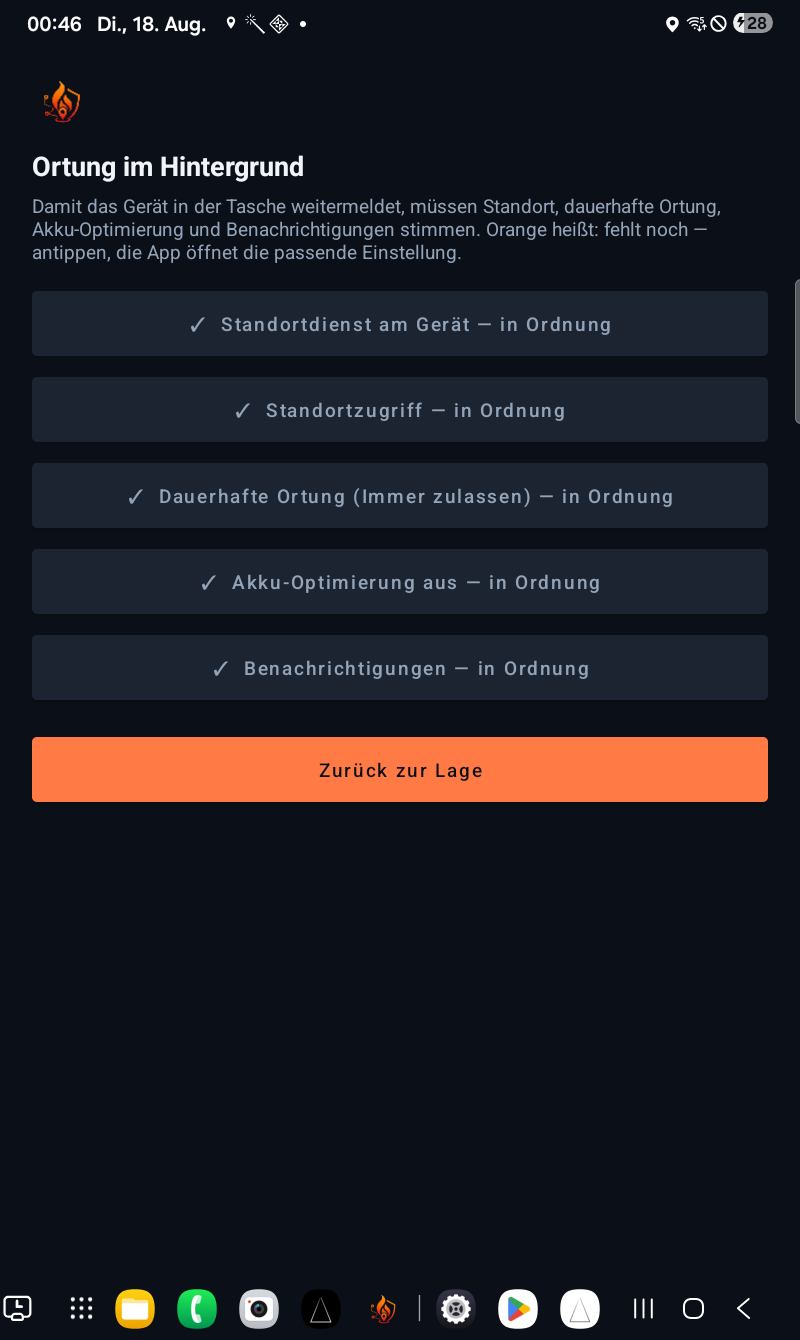
If a permission is missing, the page Ortung im Hintergrund also comes by itself: right after sign-in and on every return to the app. As long as something is missing, the app does not start the reporting service.
- Standortdienst am Gerät — location must be switched on on the phone at all.
- Standortzugriff — the app may read the precise location.
- Akku-Optimierung aus — Android may not put the app to sleep.
- Benachrichtigungen — the reporting service shows an ongoing notice in the status bar.
There were once five. The dauerhafte Ortung im Hintergrund dropped out on 21.08.2026: the reporting service runs as a foreground service of type location and keeps the access when the screen locks or another app comes to the front. Measured and not assumed — locked, other app in front, process displaced: in all three cases the reports still came.
Why the app needs the location
Above the four buttons the app says what the permissions are for. That is not a formality, but the information that is due before granting: if the device is signed in to a running incident, it sends its position to the server of its own fire brigade every ten seconds. Reporting happens only as long as that sign-in stands — with sign-off or the end of the incident it stops; outside an incident no location is collected. As long as reporting runs, a lasting notification stands in the status bar. The data go to the server of the own fire brigade and to nobody else.
Switch a permission off again
Right at the bottom of the page stands the way back: App-Einstellungen von Android öffnen. They are withdrawn there and not in the app — it does not take a permission away from itself. Beside it stands what then no longer works: without location access the device no longer reports at all and stays on the situation at its last place; with battery optimisation on, the reports come irregularly or not at all; without notifications Android may end the reporting service. The distress call can still be triggered — the Einsatzleitung then sees it only without a current location.
Orange means: still missing
Every row is a button. What is in order stands grey and starts with a tick: ✓ Standortzugriff — in Ordnung. What is missing stands orange and starts with an exclamation mark: ! Standortzugriff — tippen — Einstellung öffnen.
What comes when you tap is not the same for all four:
- Standortzugriff and Benachrichtigungen first ask with Android’s prompt. Only when the permission is already granted does the button lead into the settings.
- Standortdienst am Gerät and Akku-Optimierung aus open the relevant system setting.
Back in the app the button turns grey as soon as it fits. As long as something is missing, under the list it says: Noch nicht vollständig. Solange etwas fehlt, meldet das Gerät nur bei offenem Bildschirm. If everything is in order, this line disappears — and the next time you come back the page closes by itself. The button Zurück zur Lage leads back to the map at any time.
The screen stays on
As long as the app is in front, the screen does not go off by itself and the device does not lock. The tablet in the vehicle and the phone in the holder should show the situation without someone first having to unlock after two minutes of inactivity.
If the app goes into the background, that no longer applies — the screen may go off. Reporting continues anyway; the reporting service does that, and it needs no awake screen. It runs as long as the device is in the incident, and stands in the status bar: the unit name at the top, below it the time since the last report that got through. Before the very first report it says Warte auf erste Meldung …; if nothing gets through for twenty seconds, the text switches to Keine Verbindung. If something is waiting for a network, the number of waiting reports stands there.
In the browser it is different
On the computer and on the iPhone there is no reporting service of their own — not in the Windows application either, which uses the same browser engine for that. There the page itself locates, and only as long as it is open. If the screen closes, reporting stops. The unit stays at the last reported place: after a minute and a half it says Position veraltet, after three minutes Kein Kontakt.
On the iPhone a note stands at the top of the page for that — but only as long as the page runs in Safari and not from the home screen: Zum Home-Bildschirm hinzufügen — sonst nimmt die Safari-Leiste den Platz der Bedienknöpfe, und die Ortung endet, sobald der Bildschirm zugeht.
If the location permission is missing in the browser, at the bottom of the screen it says: Standortfreigabe fehlt — die Lage sieht diese Einheit ohne Position. If location fails for another reason, it says Kein Standort verfügbar.
In the Android app the page deliberately does not locate. The reporting service does that; otherwise every position would arrive twice.
Battery
- Even when standing still a report goes out every ten seconds. This heartbeat must not stop — a device that stays silent soon stands in the situation as Kein Kontakt.
- If the unit moves by at least 15 metres, the report goes at once, without waiting the ten seconds. Ten seconds and 15 metres apply equally in the app and in the browser.
- A position older than 45 seconds does not go out in the app as a current location. The report itself still goes — only without a position.
- Every report takes the battery level with it. Anyone who taps a unit in the unit list sees it below in the Batterie row.
- On the iPhone it stays at unbekannt: Safari does not give out the battery level.
- Akku-Optimierung aus is one of the four permissions. Without it Android eventually puts the app to sleep, and the locked phone in the pocket no longer reports.
- The awake screen hangs on the app’s window. In the background it lapses by itself — nothing stays hanging that drains the battery.
The Windows application
For the computer in the fire station there is an application of its own beside the browser. It draws the Lagebild itself — map, unit list, history, brigade administration, statistics, QR code and the sign-in. The server is the data source and nothing else. Buttons, colours, icons and wording are the same as in the browser, because they come from the same place: what this guide says about the computer applies there unchanged.
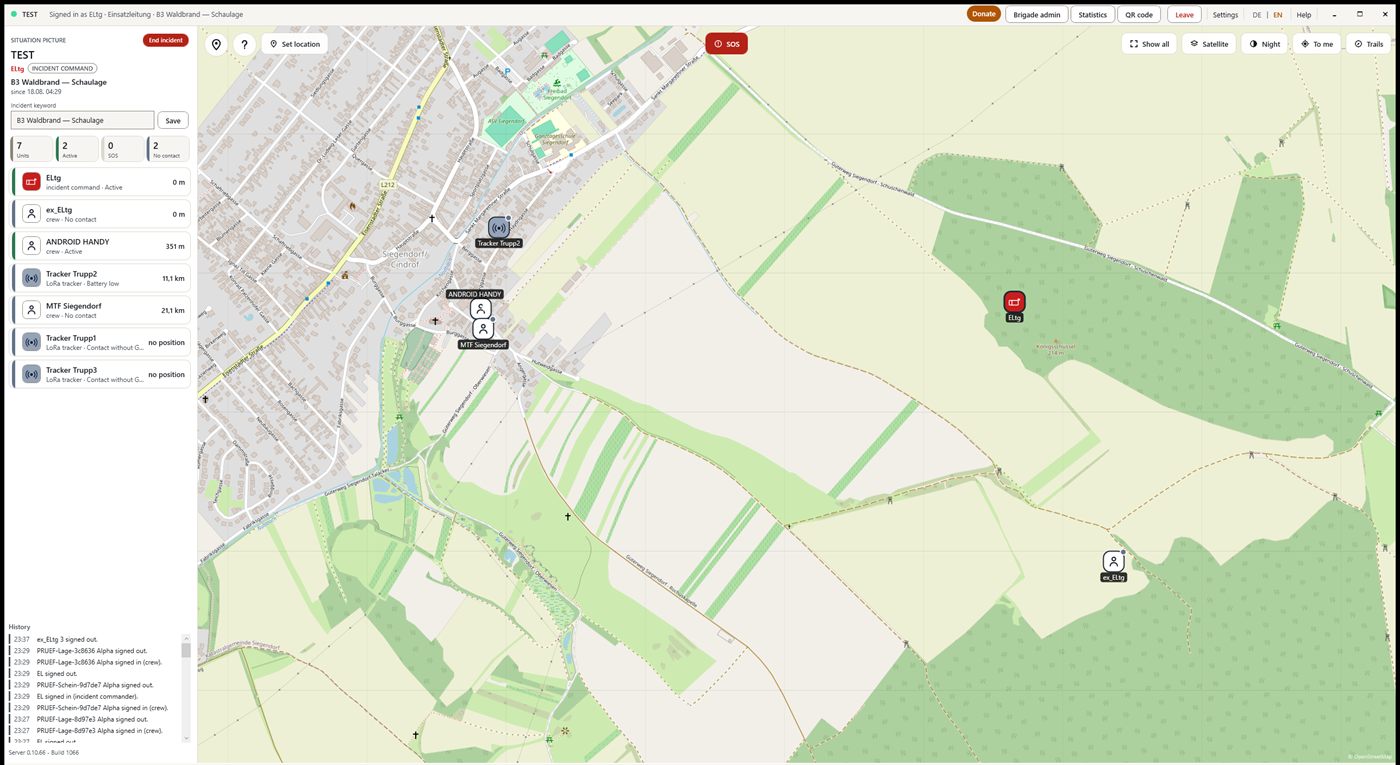
A click on a unit — in the list or on the map — opens its details below the list: kind, status, last contact, last position, distance, battery, accuracy.
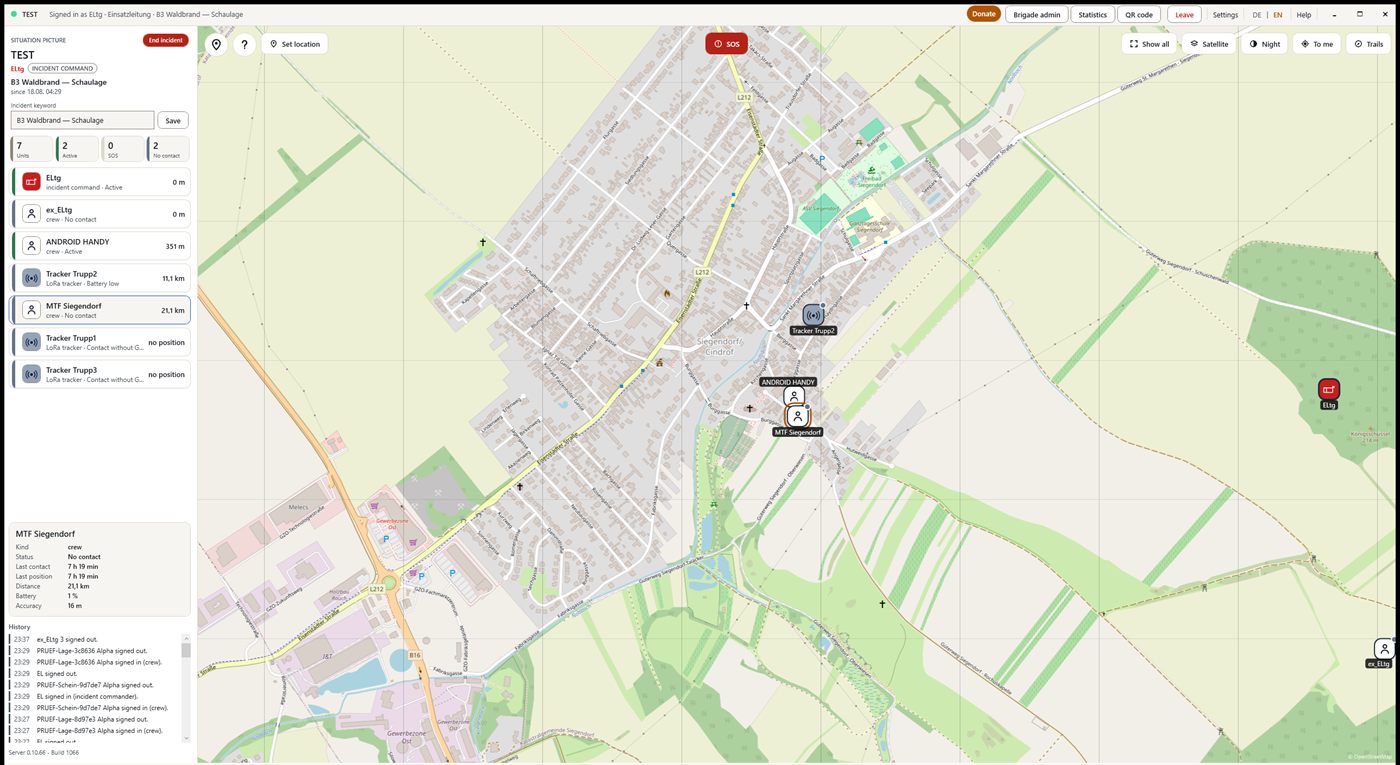
Night mode really turns the map dark. The road tiles are recalculated the way the browser does it, not just dimmed — a dimmed light map is a grey map, and in the command vehicle you then see neither roads nor markers. The aerial view stays untouched: an inverted aerial photo is unreadable.
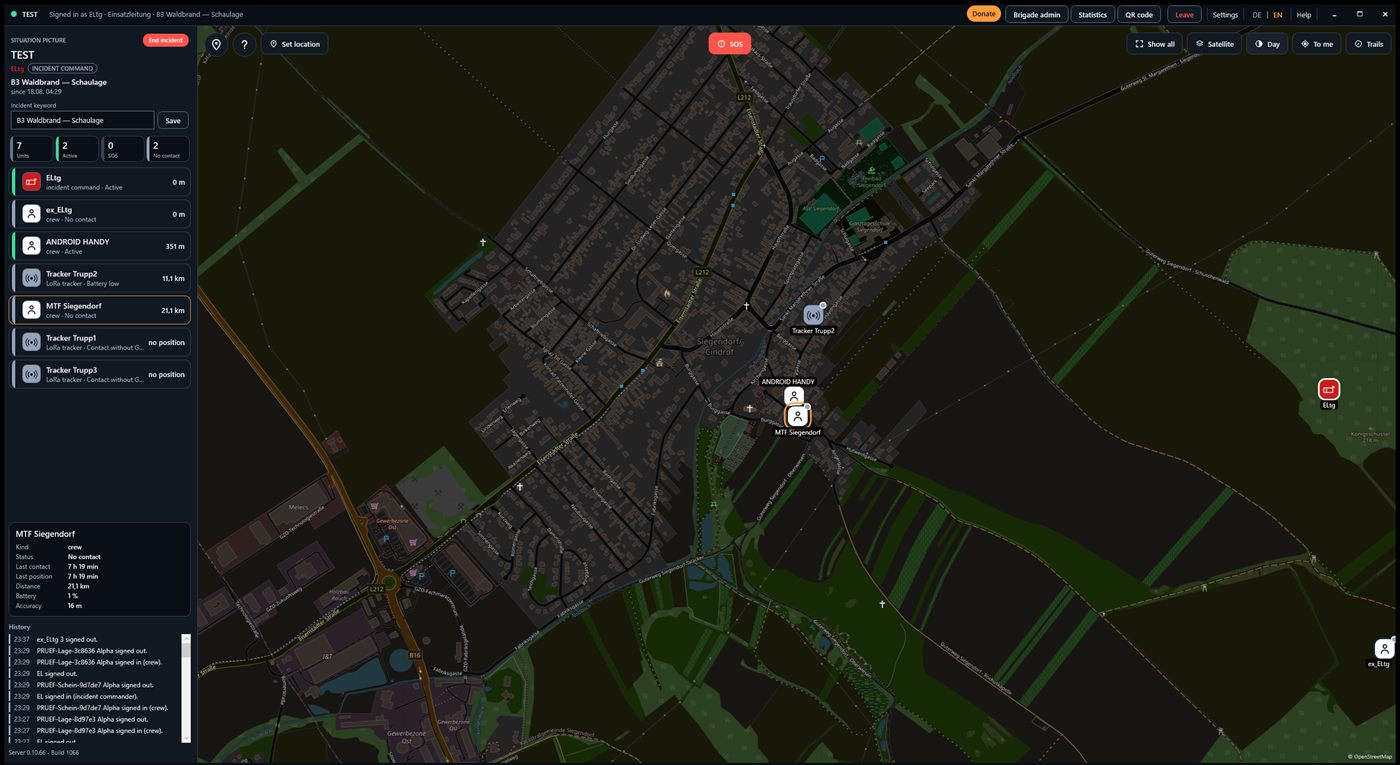
Four things it can do that a browser window cannot:
- Screen and computer stay awake while its window is open. Otherwise the station screen goes black after ten minutes.
- Sound without a click first. A browser only allows sound after you have operated the page — and nobody clicks into the command screen for hours. A distress call, an assignment and a request are audible here.
- It keeps asking when the window is covered. A browser stretches its timers in hidden windows to up to a minute.
- A distress call reports itself even behind other windows — as a Windows notification, flashing in the taskbar and as a red sign next to the clock.
Three things are different from the browser:
- There is no field for the server address. It is built in. A field into which you can type a wrong address has no place in the fire station.
- The “Einsätze” link is missing in the left bar. Where something is running is shown on the sign-in screen instead: to the right of the two PIN fields the application lists every brigade on this installation, and running incidents come first. Clicking a row picks that brigade. The list refreshes every minute while it is on screen.
- It says itself whether it is current. In the settings dialog, under Updates, stands the button Updates prüfen (check for updates). The answer is a single sentence and names the case: Keine neue Version. — Neue Version … vorhanden. Jetzt einspielen? with a button beside it — Der Server war nicht erreichbar. — Der Server hat geantwortet, aber seine Angaben sind unbrauchbar. — Der Server bietet eine neuere Version an, die sich nicht prüfen lässt. If the application was installed from the Microsoft Store, that button is pale and does nothing — there the Store does the updating, and the application does not do it a second time beside it. The sentence above it says so too.
Signing back in from the same computer gives you your unit back. Close the application without signing out, start it again, sign in — and you are the same unit as before, not a second one beside a renamed first. Only when a different device takes over Einsatzleiter or Einsatzleitung does the previous holder step aside, as it always did.
The last sentence is the most important: it means someone may have slipped in a false accompanying slip. Earlier this case said “Kein neuerer Stand” — an attack attempt, reported as quiet. Anyone who reads it fetches the new version from the download page and not through this button. At the foot of the dialog there always stands Ordner mit Protokoll.
Brigade, devices, and debrief
This part describes everything that does not happen in the incident: creating your own fire brigade, the brigade password, entering LoRa trackers and gateway, and after the incident reading numbers and the log. Two of these pages exist only on the computer: Verwaltung and Statistik. Anyone who opens them on the phone or on the tablet is redirected by the server to the computer version — a table of radio keys is not usable on the phone. Creating a brigade and the admin access are not redirected.
Create a fire brigade
Every brigade creates itself. Nobody who unlocks is needed for that. On the start page stands the tile Eigene Feuerwehr with the button Feuerwehr anlegen. If no brigade is there yet, the button beside it is called Erste Feuerwehr anlegen and leads to the same place.
- On the start page click Feuerwehr anlegen. The page is headed Neue Feuerwehr — Anlegen.
- Under Name der Feuerwehr enter the name, for example FF Musterdorf. At most 64 characters.
- Under Mailadresse enter an address for questions. It is not an access and opens nothing.
- Under Kennwort für die Verwaltung set a password of at least four characters. Anyone who knows it gets into Verwaltung and Statistik of this brigade.
- Click Feuerwehr anlegen. After that the password prompt of the new brigade opens at once.
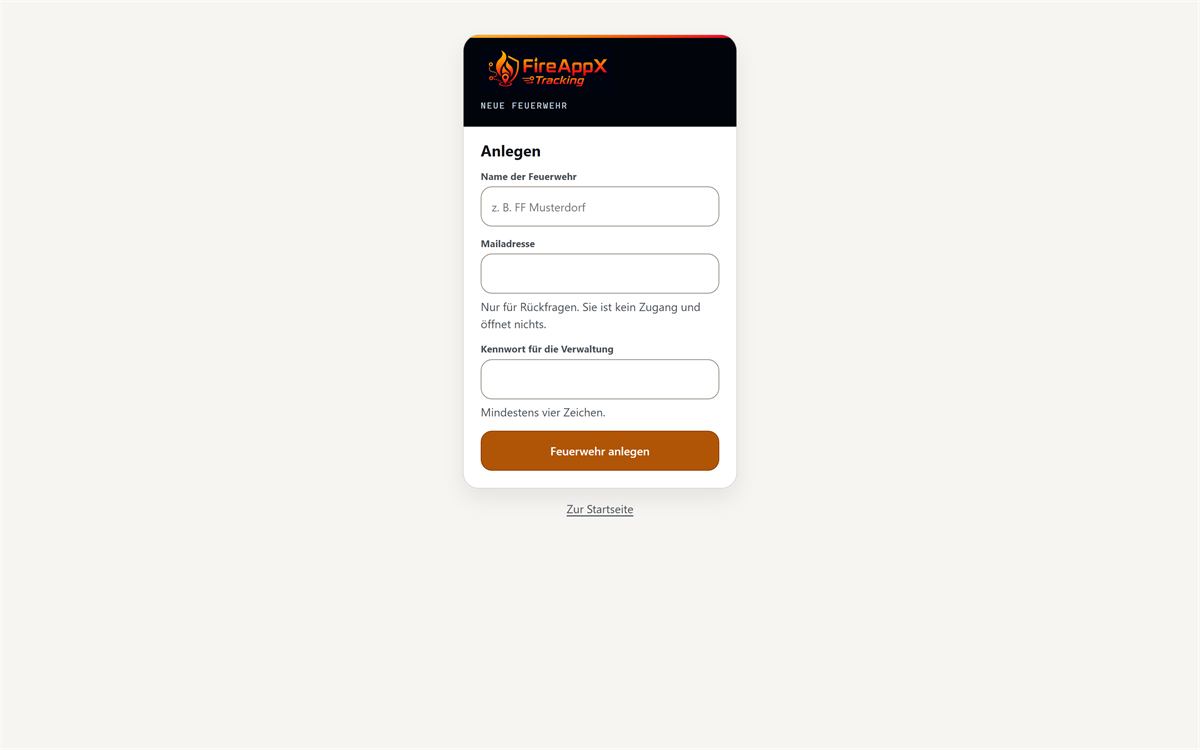
If something does not work, the reason stands in red in the form: Ohne Namen geht es nicht. — Der Name ist zu lang (höchstens 64 Zeichen). — Eine Feuerwehr mit diesem Namen gibt es schon. — Das Kennwort braucht mindestens vier Zeichen. Anyone who submits very often in a row is slowed down; then it says Zu viele Versuche. In 15 Minuten wieder. Here every attempt counts, including the successful one. If the form has stood open too long, it comes Das Formular ist abgelaufen. Bitte noch einmal.
The new brigade gets an address of its own, an administration of its own and an archive of its own. What stands in it, no other brigade sees. An admin account is not created by that.
The brigade password
You reach the Lagebild without a password — in an incident every second counts. Behind the password lie only Verwaltung and Statistik. Anyone who opens one of the two pages without being signed in first lands on the password prompt and after signing in where they wanted to go.
- Open Verwaltung or Statistik, for example through the buttons on the start page.
- In the Kennwort field type this fire brigade’s password.
- Click Anmelden.
If it does not match, it comes Kennwort stimmt nicht. After many failed attempts it comes Zu viele Fehlversuche. In 15 Minuten wieder. At brigades that are released for trying out, the password stands directly on the sign-in page. At the bottom two links lead on: Zur Startseite and Adminzugang.
The button Abmelden at the top right in Verwaltung ends this sign-in again and leads back to the start page. It has nothing to do with signing off from the situation. On the statistics page this button does not exist.
Set the command PIN
The command PIN is not the administration password and not the incident PIN. It is the digit sequence with which someone signs in as Einsatzleiter, Einsatzleitung or Beobachter — and without it no incident can be opened. Unlike the incident PIN it does not change with the incident: command should not have to agree a new one every time.
- Open Verwaltung. The section Kommando-PIN stands right at the top; beside it it says gesetzt or nicht gesetzt.
- In the field Kommando-PIN (4 bis 6 Ziffern) enter the digits. Digits only — a letter would have to be spelled on the radio.
- Click Speichern.
After that it stands on the screen exactly once, in a box: “Die Kommando-PIN lautet jetzt …”. On the next load of the page it is gone. It is stored only encrypted and cannot be brought back — anyone who forgets it sets a new one. It never stands in the field itself; a field that pretends to show it would be a lie.
As long as none is set, it stands there in red: Ohne Kommando-PIN kommt niemand als Einsatzleiter oder Einsatzleitung herein — und niemand kann einen Einsatz eröffnen. That is the first move of a newly created brigade. The command PIN does not belong on a slip in the vehicle.
What stands in Verwaltung
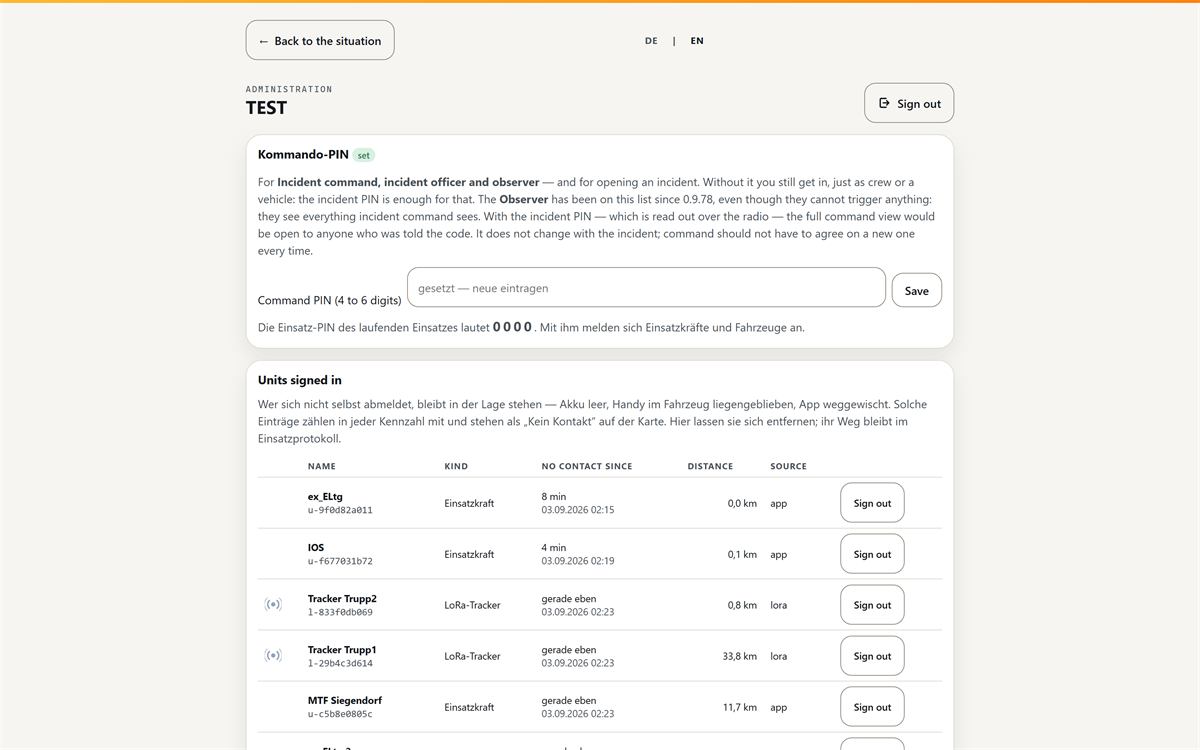
Above the first section stands the brigade’s name. If an admin is looking on, beside it small Admin and their e-mail. The page has eight sections, always in the same order — and the two for which you open it during an incident stand at the top.
| Section | What stands there |
|---|---|
| Kommando-PIN | The PIN for Einsatzleiter, Einsatzleitung and Beobachter — and for opening an incident. It is set here. |
| Angemeldete Einheiten | Who is currently signed in to the running incident; leftovers can be signed off here. |
| Einheitenarten | The catalogue: symbol, colour, short mark, profile and rights of each kind. For looking up, not for changing. |
| Fahrzeugtypen | The short codes with their full name, for example TLF and RLF for the type Water-carrying. On the map all carry the same mark. |
| Gateway (LoRaWAN) | The EUI of the own gateway. |
| Geräte (LoRaWAN) | The brigade’s known trackers, with make and model. Every row can be clicked. |
| LoRa Join Requests | Trackers that have radioed but are not yet entered. |
| Archiv | The ended incidents with their numbers. Each can be clicked. |
In the Einheitenarten table the Rechte column says what a kind may do: nur einmal means the role can be taken only once. Fahrzeug means the kind gets a vehicle type. führt means it may set the keyword and end the incident. eröffnet means it may open an incident. Gerät stands at kinds that are not signed in by hand, but come over radio. At a kind nothing at all may stand — then it may do none of that. Right at the bottom of the page the buttons Lagebild, Statistik and Einsätze lead on.
If something goes wrong in one of the sections, the message does not stand in the row, but in red right at the top of the page.
Enter the gateway
The LoRaWAN gateway is the brigade’s radio receiver. Its EUI assigns every incoming radio packet to this brigade. If nothing is entered, the network server discards every packet, and not a single report arrives.
- In Verwaltung go to the section Gateway (LoRaWAN).
- In the field Gateway-EUI (16 Hexzeichen) enter the EUI. It stands on the housing of the own gateway.
- Click Speichern. It takes effect at once; a restart is not needed.
If the value does not fit, at the top of the page appears: Die Gateway-EUI braucht 16 Hexzeichen — oder sie gehört bereits einer anderen Wehr. The same EUI can belong to only one brigade.
Take over a LoRa tracker
A tracker whose DevEUI the brigade does not yet know gets no answer — that would be signed with its AppKey, and only the device knows that. That it has tried stands in the section LoRa Join Requests: DevEUI, JoinEUI, number of attempts, reception values and the last attempt as age, with the local time small underneath. The newest attempt stands at the top. If nothing stands there, it says Niemand klopft an.
- Take the tracker’s sticker to hand. The AppKey stands on it.
- In the field beside it enter the name under which the tracker should stand in the situation. A suggestion is already in it: Tracker and the last four characters of the DevEUI.
- Type the AppKey, exactly 32 hex characters.
- Click Übernehmen. The key is checked against the request at once.
If something does not match, the reason stands at the top of the page: Der AppKey braucht genau 32 Hexzeichen. — Dieser AppKey passt nicht zu der Anfrage. — Zu dieser DevEUI gibt es schon ein Gerät. — Ein Gerät mit diesem Namen gibt es schon. — Diese Anfrage gibt es nicht mehr. — Über diese Anfrage ist bereits entschieden. So a mistype shows here and not only at the next radio attempt. Anyone who does not want a request clicks Ausblenden; after that it no longer stands in the list.
Delete a device
In the section Geräte (LoRaWAN) every known tracker stands with name, Marke/Modell, identifier, kind, vehicle, DevEUI, state and last reception, sorted by name. At last reception the age stands first (“gerade eben”, “12 min”) and the local time small underneath; if the device has never radioed, it says nie. If none is entered yet, instead there stands the note that a tracker first appears under “LoRa Join Requests”.
The name is a link. Behind it lies the Ändern form: name, Marke und Modell (the field shows as an example z. B. Dragino LGT-92), kind in the situation, vehicle type and a note, plus the radio data below. Make and model stand in a column of their own and not under the name: the question “which type is that” arises when comparing two rows.
A tracker can also be stopped without deleting it. The button Deaktivieren in its row takes it off the map; its keys stay entered, and Aktivieren brings it back. Delete is the way for a device the brigade no longer has.
- In the device’s row click Löschen.
- In the same row the question Wirklich löschen? appears — confirm with Ja, löschen or cancel with Abbrechen.
If this device is currently signed in as a unit in a running incident, it is not deleted. Then it comes: Dieses Gerät ist im laufenden Einsatz angemeldet. Mit ihm verschwände auch die aufgezeichnete Spur — erst abmelden, dann löschen. A device that is not currently running along can also be deleted during an incident.
Sign off leftover units
Battery empty, phone left in the vehicle, app swiped away: anyone who does not sign off themselves stays in the situation and counts in every number. The section Angemeldete Einheiten clears that. It is sorted by radio silence — whoever has not reported for longest stands at the top. The column Kein Kontakt seit is highlighted from five minutes. Beside it still stand distance and the source of the reports.
- In the section Angemeldete Einheiten find the row that stands at the top.
- In that row click Abmelden.
This unit’s path so far stays in the incident protocol; in the protocol it says “von der Verwaltung entfernt”. If nothing is running, it says Es läuft gerade kein Einsatz. If an incident is running but nobody is in it, it says Niemand angemeldet.
Statistics
Statistics lie behind the same password as Verwaltung. At the top under Laufender Einsatz stands the keyword with the start in UTC, below it the numbers: Angemeldet, Insgesamt dabei, Positionen, Ereignisse, SOS and Strecke. Signed in is whoever is in it just now; altogether present also counts those who have already left again. If nothing is running, it says Es läuft gerade kein Einsatz.
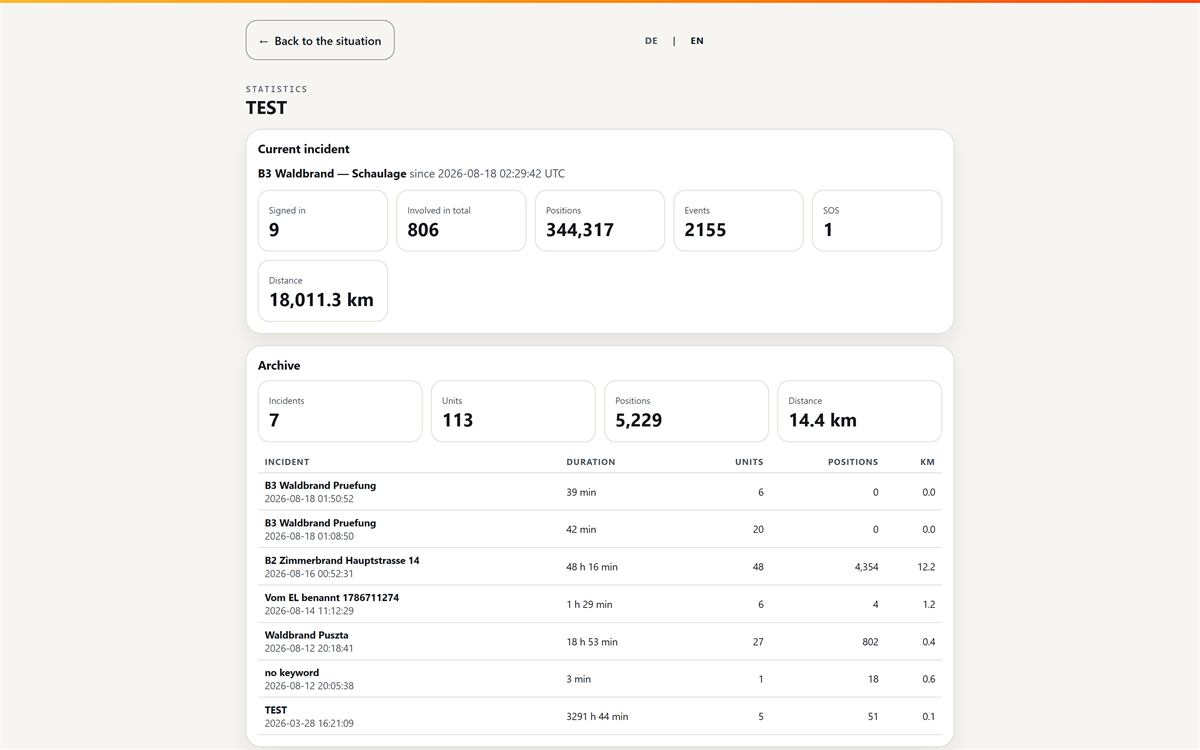
Below that stands the Archiv — first four totals over all ended incidents (incidents, units, positions, distance), then a row per incident with keyword and start, duration, units, positions and kilometres. Incidents without a keyword stand in it as ohne Stichwort. At the bottom the buttons Lagebild, Verwaltung and Einsätze lead on.
Archive and log
When an incident is ended, everything is written away and calculated. After that the incident stands in the archive — both at the bottom in Verwaltung and in statistics. The two tables do not show the same: in Verwaltung stand start, Ende and the number of SOS reports, in statistics instead the Dauer. The 50 most recently started incidents are shown, the newest at the top. If none has ended yet, in Verwaltung it says Noch kein beendeter Einsatz.
Every incident in the archive can be clicked. The link lies on the keyword — not on the whole row, so that the identifier beside it can still be copied. Behind it lies the protocol of this incident:
- the Kennzahlen: start, end, duration, units, positions, events, SOS, distance and when it was archived — all in local time;
- the Einheiten: each with kind, vehicle type, sign-in, sign-off (“bis zum Ende” if they were in it until the end), kilometres and number of points;
- the Verlauf with date, time, unit, event and kind.
The log on the screen shows at most 500 rows and writes it there if there are more. The Excel workbook contains all of them — plus the position that was measured at each event. The button Als Excel-Mappe herunterladen stands at the top right and once more at the page foot; the file name stands beside it, so that you know before the click what lands in the folder. That is the way for evidence after the incident.
Admin access across all brigades
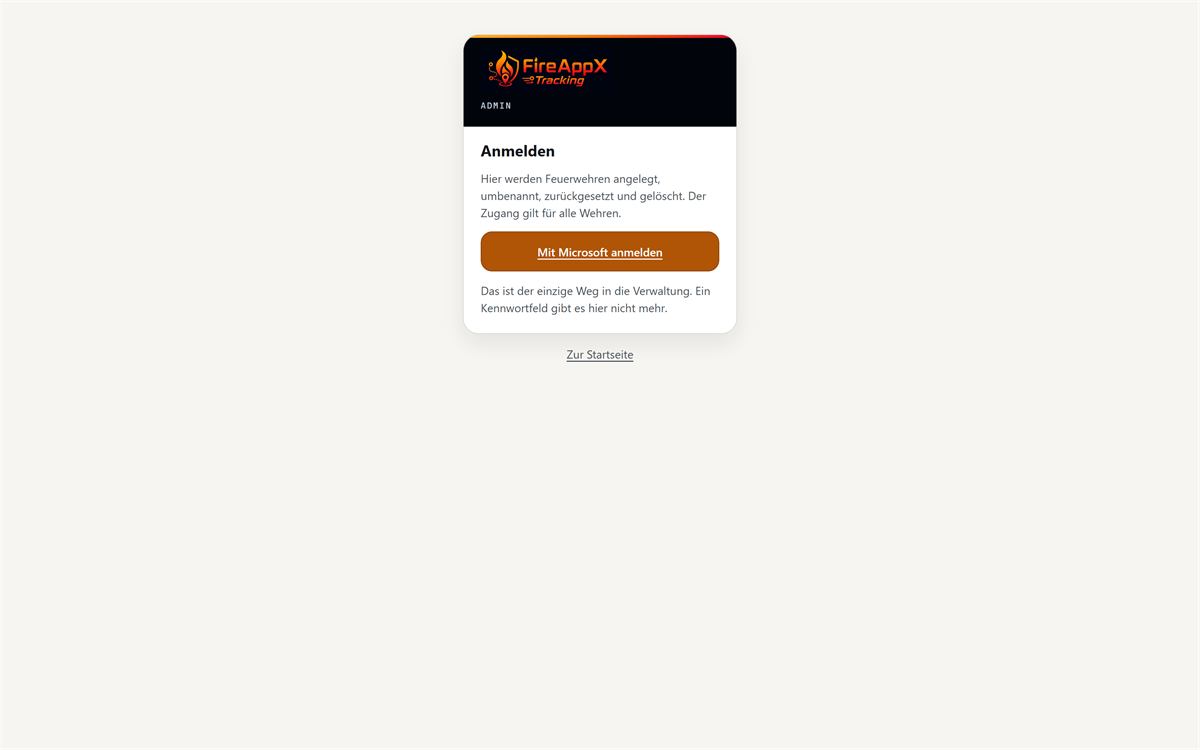
The admin access under /desktop/admin is not a brigade’s password. It applies to all brigades, and there is only one button: Mit Microsoft anmelden. This page has no password field — there should be no second password that someone writes down. A brigade that creates itself does not get such an access.
Right at the top stands the Zustand des Servers: load, CPU, free memory, disk space, running incidents, reporting devices, the size of the database with its five largest tables, plus PHP and MySQL version and the server time. Beside the load stands how old the measurement is, and that is the more important of the two figures: a load of 0.06 says nothing if it is from yesterday — then it is not the server that is quiet, but the measuring service that is dead. If the measurement is older than five minutes, the warning stands above the numbers. The row counts are labelled as an estimate; an exact count over half a million archived positions would be the wrong query on this page of all places.
There, per brigade: Umbenennen with Speichern, Kennwort zurücksetzen with Setzen, Gateway-EUI (LoRaWAN) with Speichern and Feuerwehr löschen. Plus per brigade the links Lagebild, Verwaltung and Statistik. At the top the section Neue Feuerwehr with name, e-mail and the brigade password creates a further brigade; the button there is called Anlegen. Right at the bottom still stand the admin accounts and under Was zuletzt geschah the last changes with time, person and brigade.
When renaming, only the name changes. The brigade’s address stays as it is — it stands on printed QR codes.
Deleting goes in two steps. The first click on Feuerwehr löschen asks and names how many incidents in the archive hang on it; lost as well are all tracks and all devices of this brigade. Only Ja, löschen really deletes; Abbrechen leaves everything as it was. An old bookmark on /desktop/betreiber still leads here.
German or English
At the top of this page and in the administration area you will find DE | EN. One click switches the whole application: labels, tables, messages and the history. The choice is remembered — next time the application comes up the same way.
The situation view deliberately has no switch. Its toolbar is what gets hit under time pressure during an incident, and a language button next to it would be a mis-tap that reloads the page. To switch from the situation view, go through Administration — the choice then applies everywhere.
The Windows app has DE | EN in its title bar, the phone apps in their own settings.
The privacy policy is not translated: it stays German because it is a legal text. In English a note appears above it.
When something does not work
First the three questions that settle most cases:
- Is an incident running at all? Without a running incident there is nothing to sign in to. The start page says which brigade is currently in an incident.
- Does a version stand at the bottom right of the map? If not, the page has not finished loading — reload once.
- Is the device still reporting? In the unit list, behind every unit, stands when it last reported. “Kein Kontakt” means: the device is silent, not the system.
If it stays that way, Verwaltung helps further: there, per unit, stand the radio silence and the source of the reports, and leftover units can be signed off there.
For printing
For the fire station there are two sheets to hang up: one page for the crew and a detailed overview. They belong to the system and are not issued through this page — anyone who needs them gets them from the operator. This page can be printed directly instead; the print layout is made for that.